Quick answer
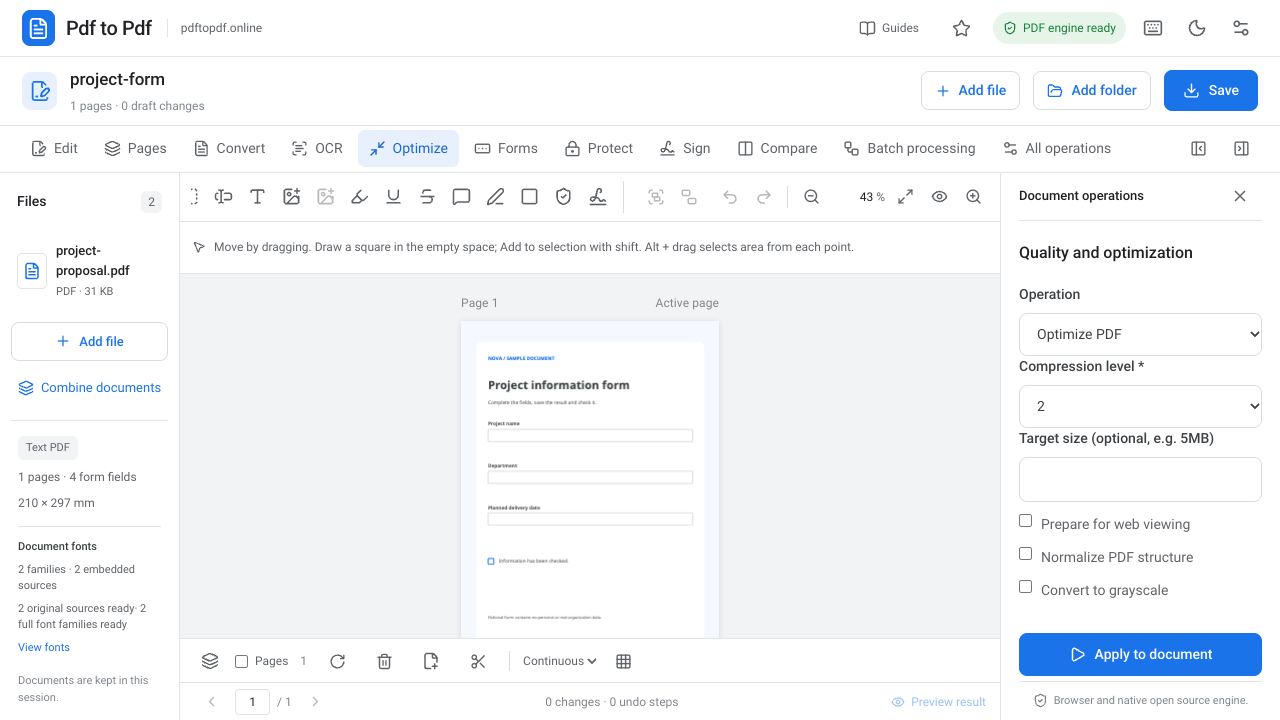
To reduce PDF size, open your document and choose lossless optimization or PDF compression in the Optimize group. Starting with the lossless method is a useful first attempt at reducing unnecessary data without changing the appearance. With stronger compression, you must also check the details in images.
The number of megabytes in a file is different from its readability. A text document with many pages may be small, while a single high-resolution scan may be large. Aim for a PDF that meets your submission requirements and remains easy to read, rather than chasing the smallest possible number regardless of the content.
What is in this guide?
Why does a PDF file become large?
High-resolution photographs and scans are common reasons for large PDFs. An image that looks small in a report may have a very large source file. Repeated content, structural data accumulated during editing and font resources also contribute to size. The page count alone does not explain how many megabytes a document needs.
Think about how the file will be used: an application document read on screen and a product catalog intended for print do not require the same detail. If small serial numbers in pictures or dimensions in drawings matter, check more than the main body text. Identify these sensitive areas before reducing the size so you can make meaningful comparisons afterward.
Start with lossless PDF optimization
Lossless optimization in the Optimize group aims to improve the document structure without reducing image quality. Open the document, choose this operation and click Apply to document. Compare the resulting file size with the source. If the PDF is already well optimized, the reduction may be limited.
Do not expect every PDF to shrink by the same proportion. If photograph data is already compressed efficiently, cleaning the file structure may achieve little. If the result meets the upload limit, you may not need a stronger operation. Preserve the original so you can return to the detailed version if you later need it for printing.
- Add the document to the studio.
- Open the Optimize group.
- Choose Lossless optimization and apply it.
- Compare output size and page appearance with the source.
How to choose a PDF compression level
The Optimize PDF operation offers different compression levels. Starting with a mild setting and reviewing the result gives you more control than applying the strongest setting immediately. You can enter a value such as 5MB in the target size field. This is an operation target: not every document can achieve the same size while maintaining the same image quality.
After compression, zoom in on small text and writing inside images. If letter edges have softened, lines have become faint or color gradients look blocky, return to a lighter setting. Losing information that needs to be readable defeats the purpose of preparing an application or sharing the file. A few controlled attempts usually help you find the right balance.
Reduce a PDF below 1 MB or 5 MB
If an application portal accepts a maximum of 5 MB, find out the original file size first. Aiming slightly below the limit helps allow for different megabyte calculations and small amounts of data added later. However, forcing a very large scan toward an extremely small target can impose a substantial quality cost on fine details.
Removing unnecessary appendices or duplicate pages can sometimes be more effective than compression. If submission rules permit it, consider splitting a long document into separate files. When every page is mandatory, do not remove required content. Balance the requested size limit with the document's evidentiary value and readability.
Optimize scanned, color and web PDFs
Consider grayscale conversion for documents where color does not convey information. Removing color may be inappropriate when chart categories are distinguished by color or the color of a signature or stamp matters. A seal that is already faint on paper may become harder to distinguish when compression and tonal changes are applied together.
Preparation for web viewing concerns how the file is arranged for viewing over the internet. That option alone does not guarantee a large size reduction. OCR also makes scanned text searchable without automatically improving the detail in the scan image. Treat searchability, sharing size and visual quality as separate requirements when choosing your operations.
Check the quality of a compressed PDF
Check the page count, orientation and important content in the downloaded PDF. Small footnotes, barcodes, QR codes, table lines and text inside photographs are useful test areas. If the document uses a QR code or barcode, trying it with a reader is a more meaningful check than visual inspection alone.
Open the source and result at the same zoom level. If the file is smaller and the text remains comfortable to read, you have achieved your goal. For a document intended for print, add a one-page test print to the screen review. Indicate that the result is compressed in its file name so it is not confused with the high-quality original.
Frequently asked questions
Does PDF compression reduce quality?
It depends on the method. Lossless optimization seeks structural improvements without changing appearance. Stronger compression can reduce image detail; check small text and critical images in the output.
Can I make every PDF exactly 1 MB?
No. The achievable size depends on page count, image content and acceptable quality. The target size field helps, but it cannot guarantee an exact result independently of content and readability.
Why did lossless optimization reduce the size so little?
The PDF may already be efficiently created, or most of its size may come from compressed images. Check unnecessary pages and, if needed, try stronger compression while evaluating visual quality.
Try this workflow on your document.
Open the appropriate tool in Pdf to Pdf, add your document, and check the result.
Open PDF optimization