Quick answer
To merge PDFs, add your files to the same workspace, arrange their order and apply the merge operation in the Pages group. You can deliver a contract, appendices, forms and explanation pages as a single PDF. The order of pages inside each file matters just as much as the order of the files themselves.
A good merge involves more than putting documents one after another. Different paper sizes, landscape pages, blank pages and edits you have already made must also be considered. This guide explains the checks that help turn the output into a readable, complete document rather than a collection of files that is difficult to navigate.
What is in this guide?
Steps to merge PDF files online
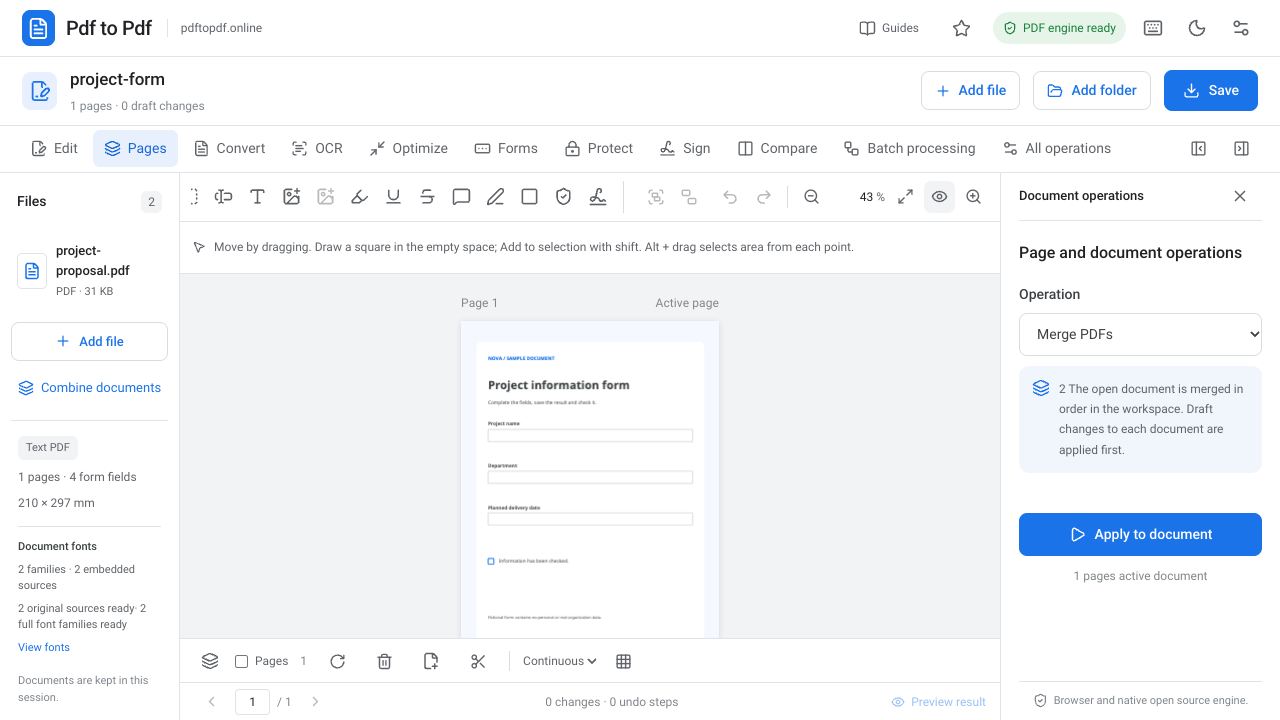
Open at least two PDFs with Add file. The documents appear in the file list on the left; on mobile, you can also use the active-document selector. The merge operation includes only files that are open in the workspace. A PDF sitting in the same folder on your computer is not automatically included unless you add it.
Open the Pages group and select merging in the Operation field. The panel shows the number of open documents and explains that their workspace order will be used. Apply to document starts the operation. Download the result when it is ready, then check the pages at the transitions between files to confirm that every section is complete.
- Open the PDFs you want to merge with Add file.
- Arrange the documents in the file list.
- Choose the merge operation in the Pages group.
- Click Apply to document and download the finished result.
Merge PDF documents in the correct order
Arrange documents in the file list by dragging them or using the Move up and Move down buttons. For an application package containing separate PDFs for a cover, application letter, identification document and appendices, establish that order first. Alphabetical file names do not necessarily correspond to the correct order for submission.
If pages within an individual PDF are out of order, open that document and organize them in the page strip first. Document order and page order are two separate decisions. An explanatory cover at the beginning of each section can make the combined file easier for the recipient to navigate. Removing unnecessary duplicates before merging also reduces the file size.
Combine PDFs that contain draft edits
Draft changes in open documents are applied before the files are merged. This lets a date correction in one file and an added explanation in another carry into the combined output. Even so, review each document briefly before running the operation. A change made while the wrong document was active may also be present as a draft.
Finalizing a text edit may need to wait while the source font is prepared. If that happens, monitor the preparation status instead of repeatedly pressing the merge button. Undo an incomplete or incorrect edit before merging. Because the merged PDF is a new output, use clear file names to identify which copy receives any later corrections.
Merge A4, A3 and landscape PDF pages
Merging PDFs of different sizes does not convert every page to the same paper dimensions. An A4 letter can be followed by an A3 table or a landscape presentation slide. This may work well on screen, but when printing, the printer's page size settings require a separate check.
If you need a single paper size throughout the document, page resizing is a separate step. It places the content on a new page, and interactive forms or links may not be preserved. Avoid unnecessary resizing when your aim is simply to combine files. Reducing a large technical drawing to A4 can make its text and measurements harder to read.
Check PDFs that contain forms or signatures
For documents with fillable forms, recheck the fields in the downloaded file. The same field name used in different documents may require special attention to the resulting form structure. Flattening the form may be an option when the recipient only needs the completed appearance, but the fields will no longer be fillable in the same way.
A certificate-based digital signature relates to the document content at the moment it was signed. Editing a signed PDF or merging it with another document does not make the new file equivalent to the original signed file. If signature verification matters, preserve the original signed document separately and establish the delivery requirements before merging.
Check the combined PDF before delivery
Estimate the expected page count: if you have not removed any blank pages, documents with three and five pages should produce eight pages in total. The first page, last page and transitions between files are useful places for a quick check. Also inspect landscape pages, appendices with small text and color images.
If the combined PDF is too large, apply compression as a subsequent step. Create the correct merged document first, then reduce its size; this makes it easier to identify the stage at which any problem appears. Give the finished file a name related to its content, such as the application name and date, instead of creating a succession of ambiguous copies.
Frequently asked questions
How do I combine two PDFs into one file?
Add both files to the studio, set their order in the file list and apply merging in the Pages group. The result is one PDF. After downloading, check the transition between the two sections.
Does merging PDFs change page sizes?
Merging and resizing are different operations. Pages with different dimensions can coexist in one document. If one paper size is required, evaluate the effects of a separate resizing operation on forms and links.
Are edits made before merging included in the output?
Draft changes in open documents are applied before merging. Check the edits in each document and resolve any font preparation or operation error message first.
Try this workflow on your document.
Open the appropriate tool in Pdf to Pdf, add your document, and check the result.
Open the PDF merger