Quick answer
To edit a PDF, add your document to Pdf to Pdf, select the text or image you want to change and save the edited copy. Online PDF editing lets you complete jobs ranging from a small date correction to reorganizing several pages within the same workspace. You can keep the source file while preparing a separate version for sharing.
The right method depends on how the PDF was created. In a text document exported from Word, letters may exist as separate objects; in a scanned document, the entire page is an image. Start by checking whether the text can be selected. The steps below also explain the difference between adding new content and changing content already on the page.
What is in this guide?
How to edit a PDF online
Open the studio and choose your PDF with the Add file button. If you have several documents open, first activate the file you want to work on. The page strip at the bottom helps you find the right page in a long document. Increase the zoom percentage to examine small text more comfortably, or use Fit to page to review the overall layout.
Try one small change before making extensive edits. In catalogs produced by different applications, text, vector shapes and images can overlap. Check the properties of an item when you select it; avoid moving a large background because you mistook it for a small text object. The Undo button lets you quickly correct a mistaken selection or move.
- Add your PDF to the workspace.
- Go to the page you want to edit using the page strip.
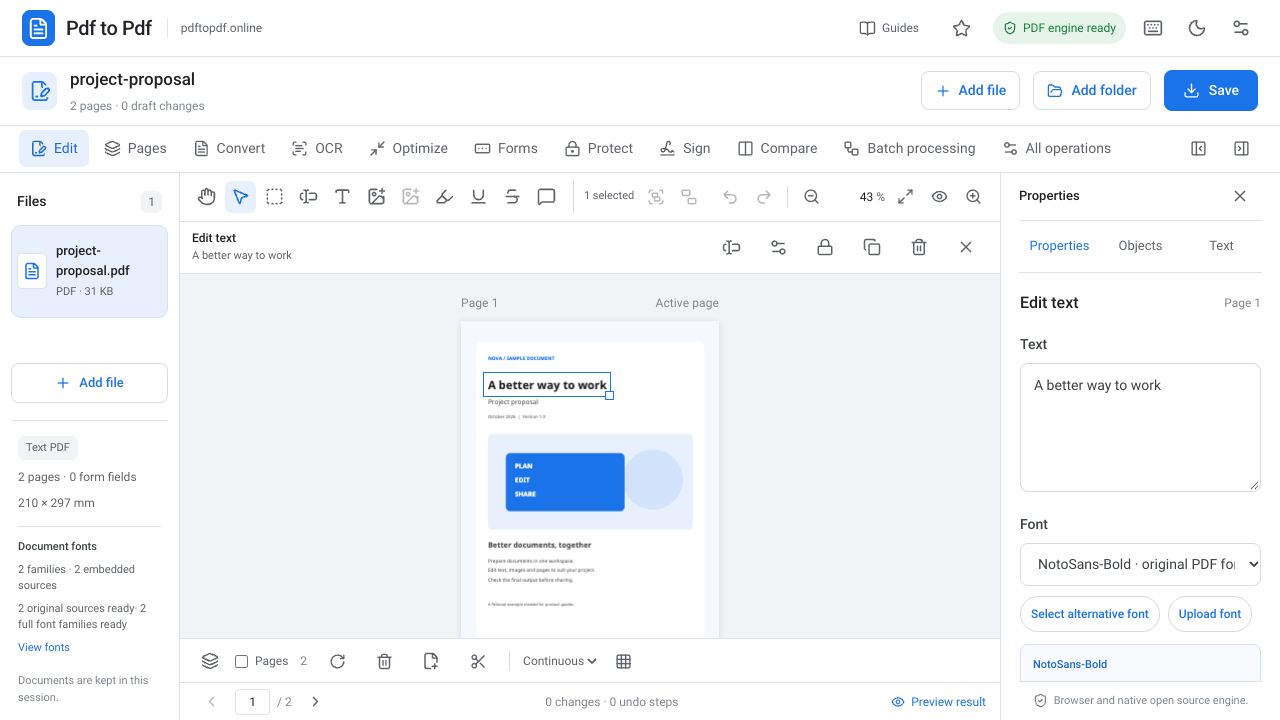
- Choose the appropriate text or image tool in the Edit group.
- Check the change in the preview, then use Save.
Change existing text in a PDF
Choose Edit existing text and select the original text. Double-clicking an editable text object opens editing directly in place. The original PDF font name is detected automatically; when a suitable complete font file is found and verified, it is prepared for the text. Having the new characters available in that same font matters for preserving the appearance, especially with accented or other non-ASCII characters.
A source PDF may contain only a subset of the font, covering the letters used in the original document. Moving existing letters and entering a character that has never appeared in the document are therefore different operations. If a complete font is unavailable, you may need an alternative font. Also check whether a longer replacement phrase extends into neighboring objects when it is entered in a short space.
Add new text and images to a PDF
The Add text tool creates a new text object. Use it to add an explanation, date or short note. It does not automatically delete a sentence already on the page. To replace existing information, edit the source text; to remove sensitive information permanently, use redaction rather than simply covering it with another object.
Place an uploaded picture on the page with Add image. Keeping its aspect ratio during resizing prevents a logo or photograph from stretching. As the image occupies more of the page, the number of pixels in the source becomes more important. Enlarging a small screenshot to fill a page does not create additional detail in the exported PDF.
Organize PDF objects and pages
Use Select and move to change an object's position. Rectangle selection helps you select several objects on the same page together. Grouping suitable objects is useful when you want to move a heading and its description while keeping the distance between them. After finishing the move, zoom in and check the alignment within the group.
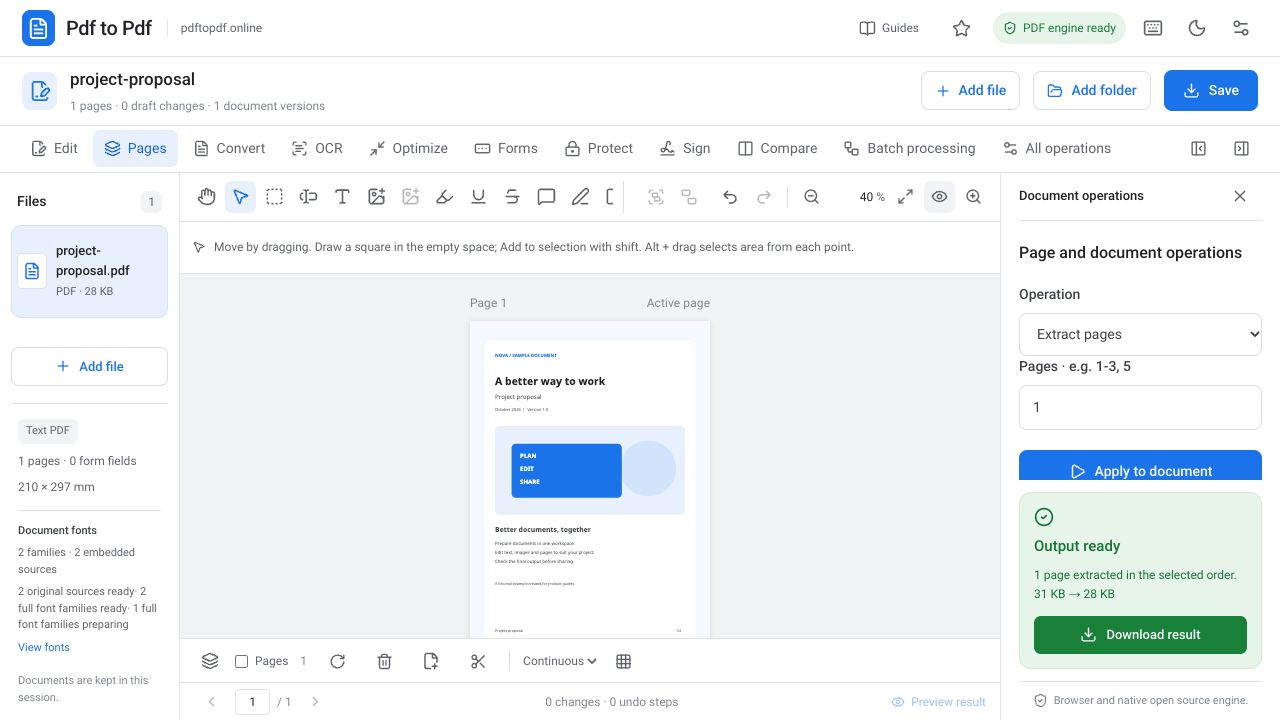
The Pages group contains document-level operations such as merging, splitting and extracting pages. Rotating an image within a page is different from rotating the entire PDF page. Decide which level your task belongs to before choosing a tool. This reduces the chance of unintentionally changing the entire layout while correcting just one object.
Why can I not select text in a scanned PDF?
In a document photographed with a phone or captured by a scanner, the visible writing is usually part of the image. A text tool may not find actual letter objects on that page. OCR recognizes characters in the image and creates a searchable text layer. That layer is different from turning the old letters in the page image into editable design objects.
Check names, numbers, dates and accented characters after OCR. Recognition errors can occur when documents are tilted, blurred or printed in very small type. If you need to change only a few details, adding a new annotation on the page may be sufficient. If the entire document needs rewriting, consider a conversion workflow that produces an editable document.
Check your PDF after editing
Before saving, examine the changed text, image edges and page boundaries. A line that appears correct in the preview may have changed length because of your chosen font or size. For addresses, bank account details and phone numbers, keeping information on one line can matter as much as entering the correct content.
Reopen the downloaded PDF for a final check. Can you select the text, is the page count correct, and is the new image where you expected? For a document intended for printing, make a small test print. Keep the source file and give the edited copy a different name so you have a reliable starting point for future revisions.
Frequently asked questions
Can I edit a PDF online for free?
Open your document in Pdf to Pdf and use the editing tools. The right tool depends on whether the PDF contains text, scans or mixed content. Start with a small change to your file and check the result.
Does adding text to a PDF change the old text?
No. Adding text creates a new object. Use Edit existing text to change an original sentence. To remove confidential information, choose permanent redaction instead of covering it with new text.
Why can I not edit every piece of text in a PDF?
The writing may be a scanned image, a vector drawing, mixed font fragments or a limited embedded font resource. Such documents may require OCR, an alternative font or editing separate source fragments.
Try this workflow on your document.
Open the appropriate tool in Pdf to Pdf, add your document, and check the result.
Open the PDF editor