Quick answer
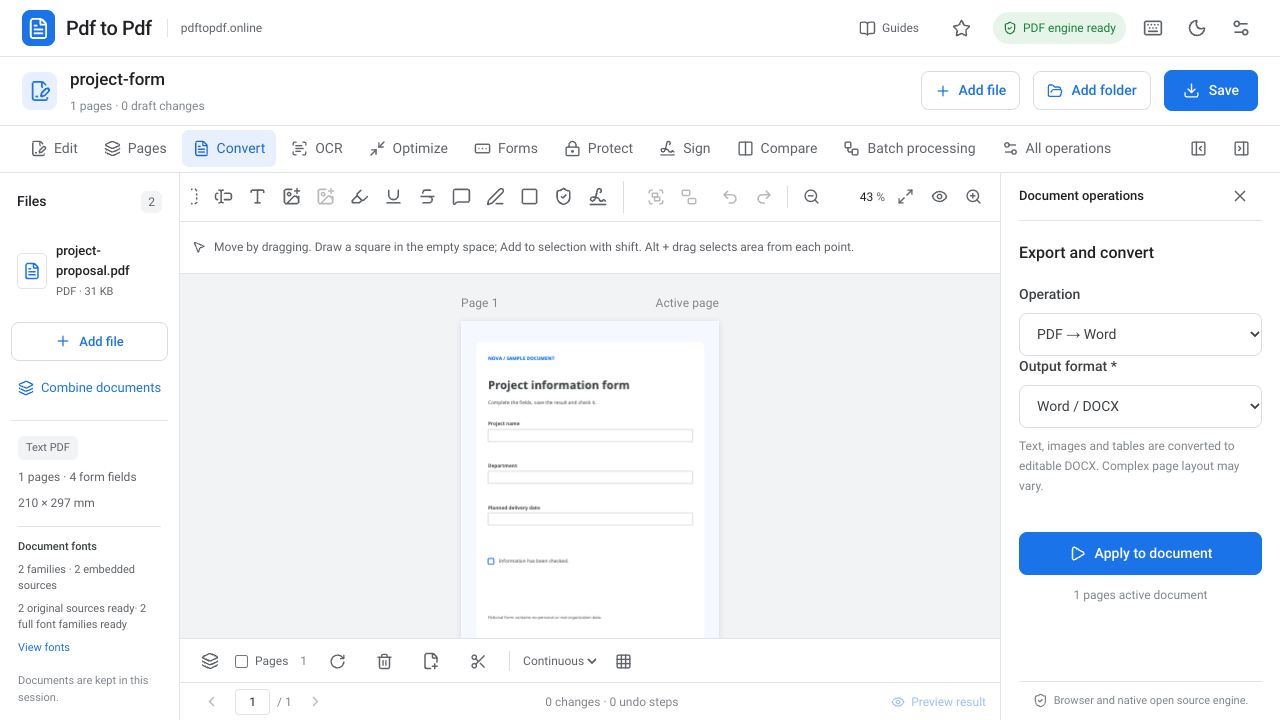
To make a JPG from a PDF page, open the document, choose PDF → Image in the Convert group and select JPG format. Set the DPI and page range, then apply the operation. Output for multiple pages is prepared in a ZIP archive, letting you use each page as a separate image.
This is different from extracting an individual photograph embedded in a PDF. The page's text, drawings and pictures are rendered together as one image. The dimensions of the place where you will share it and your quality requirements should guide both the choice between JPG and PNG and the resolution setting.
What is in this guide?
Steps to convert PDF to JPG online
Add the PDF to the workspace with Add file. Open the image output operation in the Convert group. Choose JPG or PNG in Image format. Resolution controls the DPI value, while Page range determines which pages are converted. Explicitly selecting the pages you need reduces unnecessary outputs when working with a long document.
For example, select a single page if you only want to share an application cover. Consider the full range if you need every page of a product catalog as images. Download the output after clicking Apply to document. For multiple pages, open the ZIP archive and check the order of the page files, then choose the images you are ready to share.
- Open the PDF and go to the Convert group.
- Choose PDF → Image and select JPG format.
- Set the DPI value and page range.
- Apply the operation and download the single image or multipage ZIP archive.
Should you choose JPG or PNG for a PDF page?
JPG is useful for sharing photo-heavy pages at a practical file size, and it uses lossy compression. Artifacts may appear around sharp text edges or drawings with solid colors. PNG stores image data losslessly and can be preferable for small text, interface screenshots and line-heavy pages. Its file size may be larger for some types of content.
Lossless PNG output does not mean all PDF features are preserved. In both formats, the page becomes an image; selecting text, clicking links and filling forms do not remain available in the same way. If you need the document as evidence, an archive or an editing source, keep the original PDF separately.
DPI and resolution when converting PDF to JPG
DPI affects how many pixels are generated from the page's physical dimensions. Exporting the same A4 page at a higher DPI produces a larger image. The interface starts at 144 DPI, which you can change for your sharing or printing purpose. Higher values may require longer processing and produce larger files.
Increasing DPI does not add new detail to a low-resolution photograph inside the source PDF. Vector text and lines, however, can be drawn cleanly with more pixels. If small text needs to remain readable, inspect the result at 100 percent. For a web page image, determine the required pixel width instead of choosing a very high value without a specific need.
Download a multipage PDF as JPG files in a ZIP
PDF → Image creates ZIP output for multiple pages. Once you open the archive, you can use the pages as separate images. Converting a very long PDF in a single pass may be demanding in both file size and processing time. Narrow the page range first if you only need a few pages.
When placing images into a presentation or website, use file names that preserve page numbers. Alphabetical folder order can differ from the actual document page order. Checking the first, middle and last files helps catch missing pages or an incorrect range quickly. Before sharing the ZIP archive, confirm that the recipient accepts that format.
Converting a whole page versus extracting a photo
A PDF page may contain many objects: text, a background, a logo, lines and photographs. PDF → Image renders them together as the visible page. The resulting picture contains the whole page. If you only want a product photograph, page conversion also includes the surrounding text in the image.
Identify your need before choosing a workflow. This method fits a social media post requiring the entire catalog page. For a single image intended for reuse in a design, consider source image operations. Converting the page and cropping afterward can be practical, but it does not guarantee that you obtain the original picture's resolution or all of its file data.
Check image quality after PDF to JPG conversion
Inspect letter edges, fine lines and color gradients in the downloaded image. If small text is blurry, consider a higher DPI or try PNG output. If the source page is itself a blurred scan, however, the quality limit comes from that source. Enlarging the image excessively only makes that limitation more visible.
The application used for sharing may compress the image again. Check pages containing important writing or QR codes in the target application as well. Converting to an image does not remove sensitive information: visible information remains in the picture. Complete any required privacy edits on the PDF before conversion and review the final image again.
Frequently asked questions
Do all pages of a PDF become a single JPG?
This workflow converts each page into a separate image. Multiple-page output is prepared in a ZIP archive. Narrow the page range when you need only one page.
Is the highest DPI always best for PDF to JPG conversion?
Not always. Higher DPI increases pixel count and file size without adding detail to a blurred source photo. Choose according to the pixel dimensions and readability required for your intended use.
Are text and links preserved when I make a JPG?
Text and links become part of the page image. Text selection, clickable links and fillable form functions are not preserved in the same form. Keep the original PDF separately.
Try this workflow on your document.
Open the appropriate tool in Pdf to Pdf, add your document, and check the result.
Convert PDF pages to images