Quick answer
Blank pages from scanning, an incorrect cover or appendices in reverse order can make even a well-prepared PDF difficult to use. Deleting and reordering PDF pages resolves those problems without rewriting the text inside them. The aim is to establish the document's overall structure before changing its individual page contents.
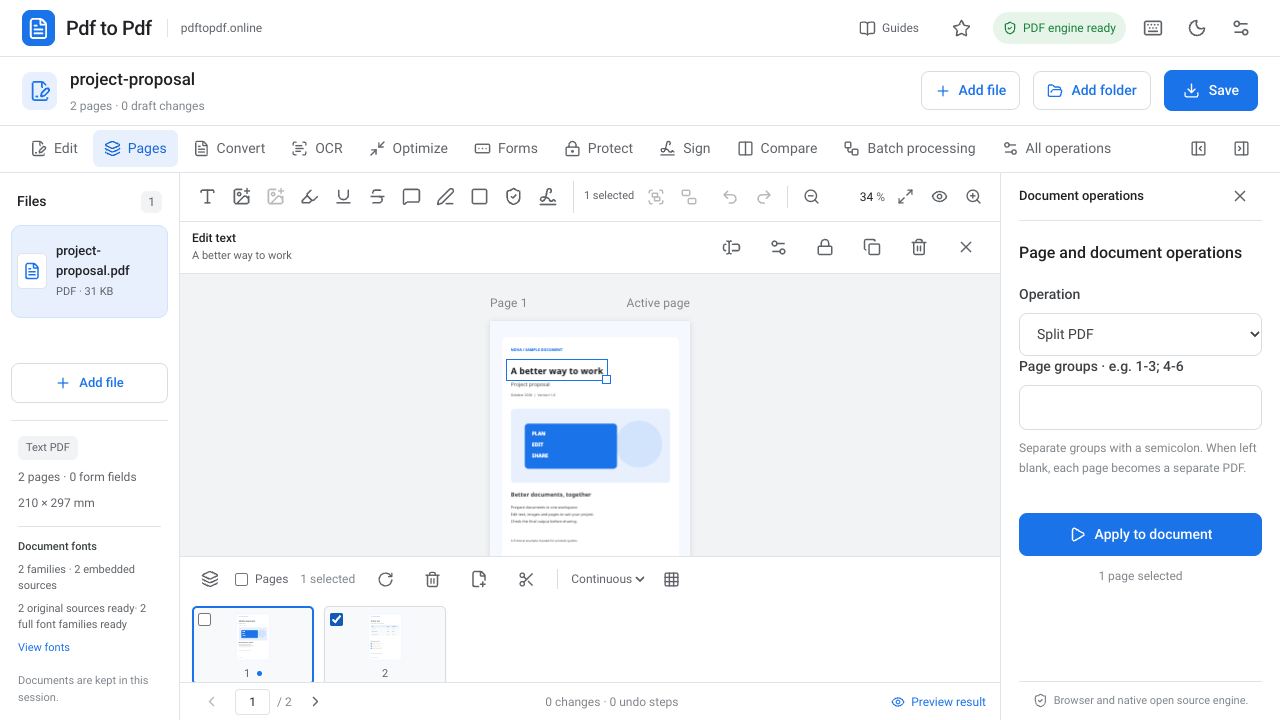
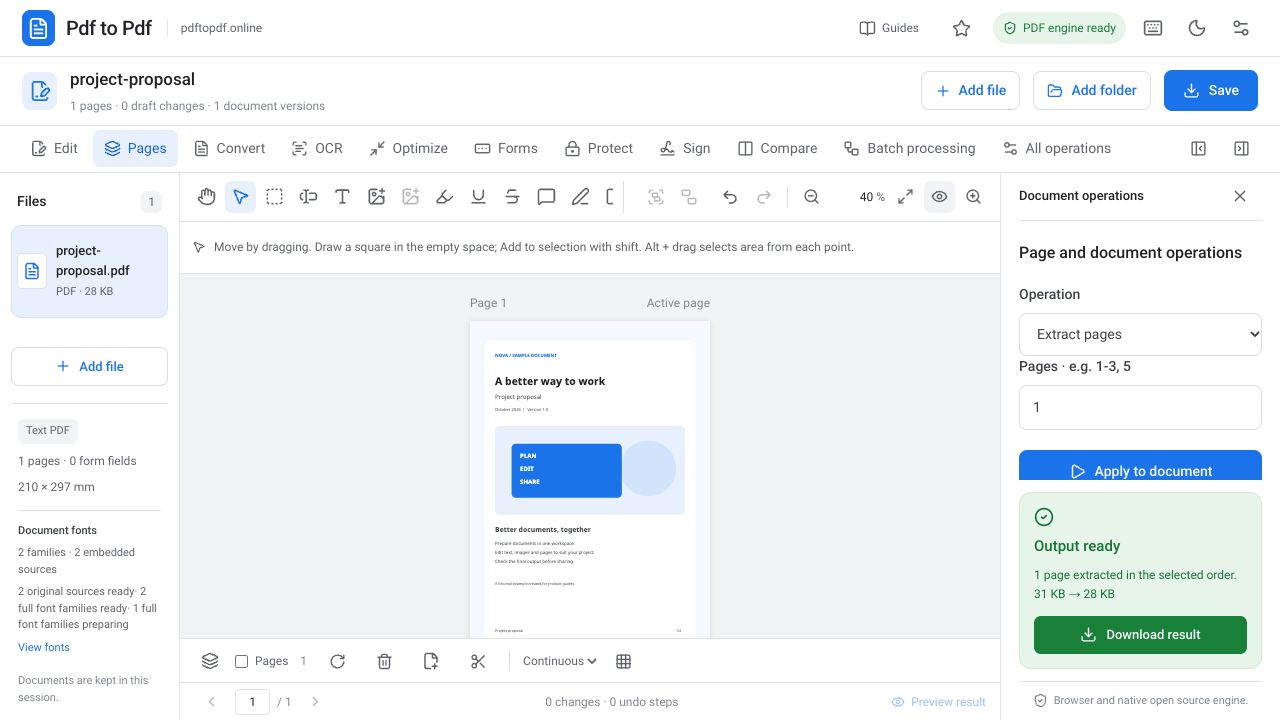
In Pdf to Pdf, the page strip below the document lets you select one or several pages. Remove unnecessary pages, drag thumbnails to change their order and add a blank page when needed. Follow the steps below to make the correct selections and check the resulting document from beginning to end. Keep a separate source copy so you can return to the original arrangement if needed.
What is in this guide?
Review the document before deleting PDF pages
A page that looks blank at first glance may contain a small footnote, form field or continued explanation on the reverse side. Enlarge the preview and examine the whole page. In scanned files, light-colored stamps and faint writing may disappear in small thumbnails. Also check the page number and whether a sentence continues from the neighboring pages.
Deleting pages is useful for more than removing blank space. You can remove an old pricing table, an appendix belonging to the wrong person or an application that is no longer relevant. If several versions exist, verify which one you are editing first. Keeping the source separately makes restarting easier if you remove the wrong page.
How to delete PDF pages online
If the page strip at the bottom is closed, use Open page strip first. Clicking a thumbnail itself takes you to that page, while the checkbox next to the thumbnail selects the page for an operation. Keep this distinction in mind: examining a page and selecting it for a multiple-page action are different interactions.
- Open the page organizer and upload your PDF.
- Review the page to remove in the large preview and check its box in the bottom strip.
- If removing several pages, confirm every selected checkbox.
- Use Delete selected pages and leave at least one page in the document.
- Check the new page count and the first and last pages, then download the result.
Change PDF page order by dragging thumbnails
To reorder pages, drag a thumbnail in the bottom strip to the position where you want it. Establishing the intended sequence of cover, contents, main text and appendices in your mind or a short list makes the task easier. If the cover is accidentally fourth, move it to the beginning first, then correct the appendices.
After each move, inspect the thumbnails to check the new sequence. Instead of moving ten pages in a row, review the document in the large preview after every two or three changes to catch a misplaced page early. If precise dragging is difficult on a phone, opening the page strip and changing screen orientation or using a larger display may help.
Distinguish printed page numbers from PDF positions
The words Page 5 printed inside a PDF do not automatically become Page 2 when you move that page. Reordering changes the position in the file and leaves the text drawn on the page unchanged. The same applies to numbers printed in a table of contents. Check whether those references still make sense after changing the sequence.
If new numbers are needed, use the page numbering operation and avoid adding a second number over an existing one. Deleting and reordering pages in a certificate-signed document may affect signature verification. When editing such a document, inspect the signature status of the new downloaded file separately.
Checks after organizing PDF pages
Give the result a clear name such as Proposal-updated-pages.pdf and open it in another PDF viewer. Starting at the first page, move through the pages in order. Seeing only the first and last pages does not establish that the appendices in the middle are correctly arranged. For double-sided scans, pay special attention to front and back pages following one another.
If the result is unexpected, clear the page selection and reassess the situation before rapidly repeating deletion and movement on the same file. Remember that checked boxes can cause the next operation to affect several pages. If bookmarks, links or fillable fields matter, test those features against the new page sequence as well.
When appendix order matters in a proposal or application, review the file in the order the recipient will read it. If the main text says See Appendix 2, confirm that the intended appendix occupies that place. A document can look correct while its text references the old sequence. Review the connection between those references and the pages separately.
- Are all required pages still present?
- Has the intended appendix actually been removed?
- Are the cover and final page in the right places?
- Are printed numbers and the contents consistent with the new sequence?
- Did the operation affect only the pages you intended?
Frequently asked questions
Can I delete blank PDF pages?
Yes. Select pages with their checkboxes in the page strip and press Delete selected pages. First examine each page in the large preview to confirm it is really blank.
Can I delete multiple PDF pages at once?
Yes. Check the boxes for the relevant pages to select them together. You must leave at least one page rather than deleting the entire document.
Do printed page numbers change when pages are reordered?
No. Reordering changes each page position in the file. Numbers written inside the pages must be edited separately.
Can I add a blank page to a PDF?
Use Add blank page in the bottom page strip. Check the position and size of the added page afterward.
Try this workflow on your document.
Open the appropriate tool in Pdf to Pdf, add your document, and check the result.
Open the page organizer