Quick answer
Some pages in photographed paperwork, scanned files and merged documents may appear sideways or upside down. Rotating a PDF corrects those pages so you can read them without turning the screen. If a document combines portrait text with landscape tables, select the pages that need correction instead of rotating everything at once.
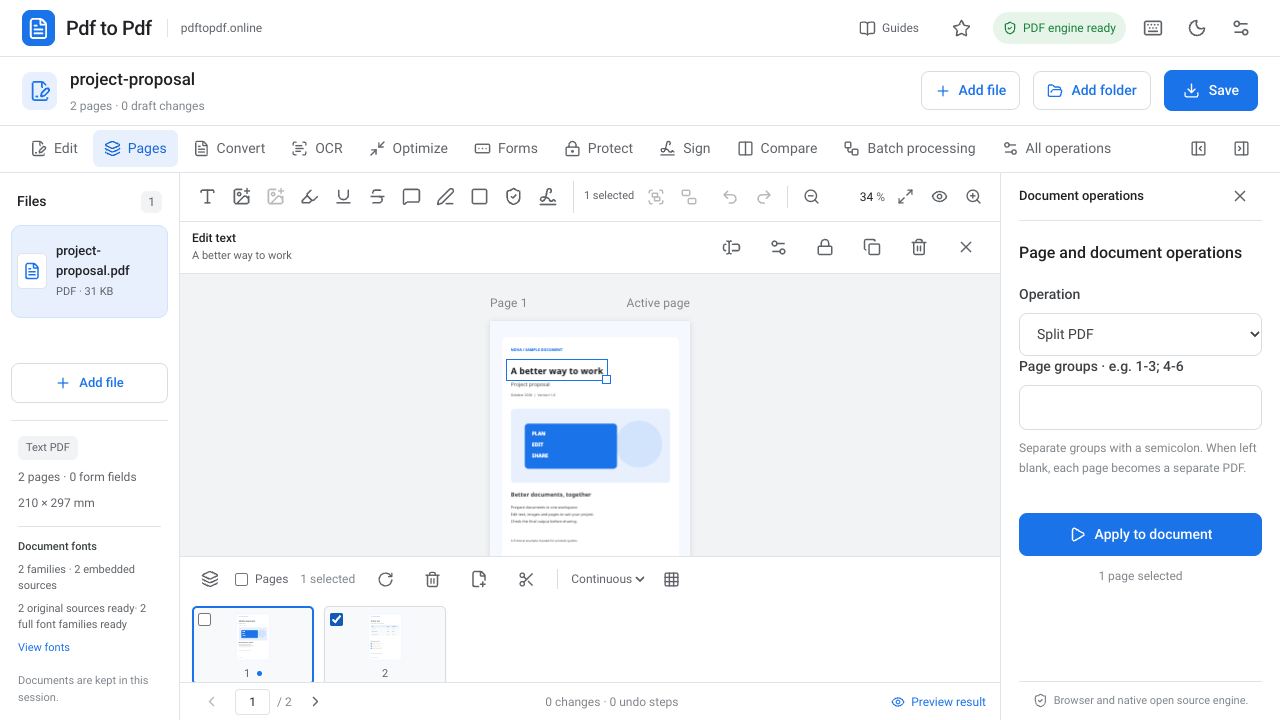
The rotate button in the bottom page strip of Pdf to Pdf applies rotation to selected pages in 90-degree steps. This guide covers correcting a single page, applying the same rotation to several pages and checking whether the downloaded PDF actually retains the intended orientation. A final review of the saved file is especially useful when your viewer also has a temporary rotation control.
What is in this guide?
Rotating the view versus rotating the file
In some PDF viewers, the rotation button changes only the current display. The old orientation can return when you close the file and open it on another device. For a persistent result, download the new PDF with the rotation applied and reopen that file. A correct appearance on screen alone is not a sufficient check.
The orientation of an entire PDF page also differs from the angle of one object inside it. If only a photograph is sideways, rotating the whole page turns the text as well. Editing the photograph directly may be more appropriate in that situation. When all the text and images are sideways together, page rotation is the right tool.
How to rotate PDF pages online
First find the sideways page's number in the bottom strip. Check whether any other pages have selected checkboxes. With no pages selected, the operation applies to the active page; with multiple selection, all checked pages are affected together. This lets you correct only the pages with an orientation problem.
- Open PDF page tools and upload your file.
- Open the bottom page strip and go to the sideways page.
- If several pages have the same orientation problem, check their boxes.
- Click Rotate selected pages; each application rotates by 90 degrees.
- Once the orientation is correct, download the result and reopen the downloaded file.
Plan 90, 180 and 270-degree rotations
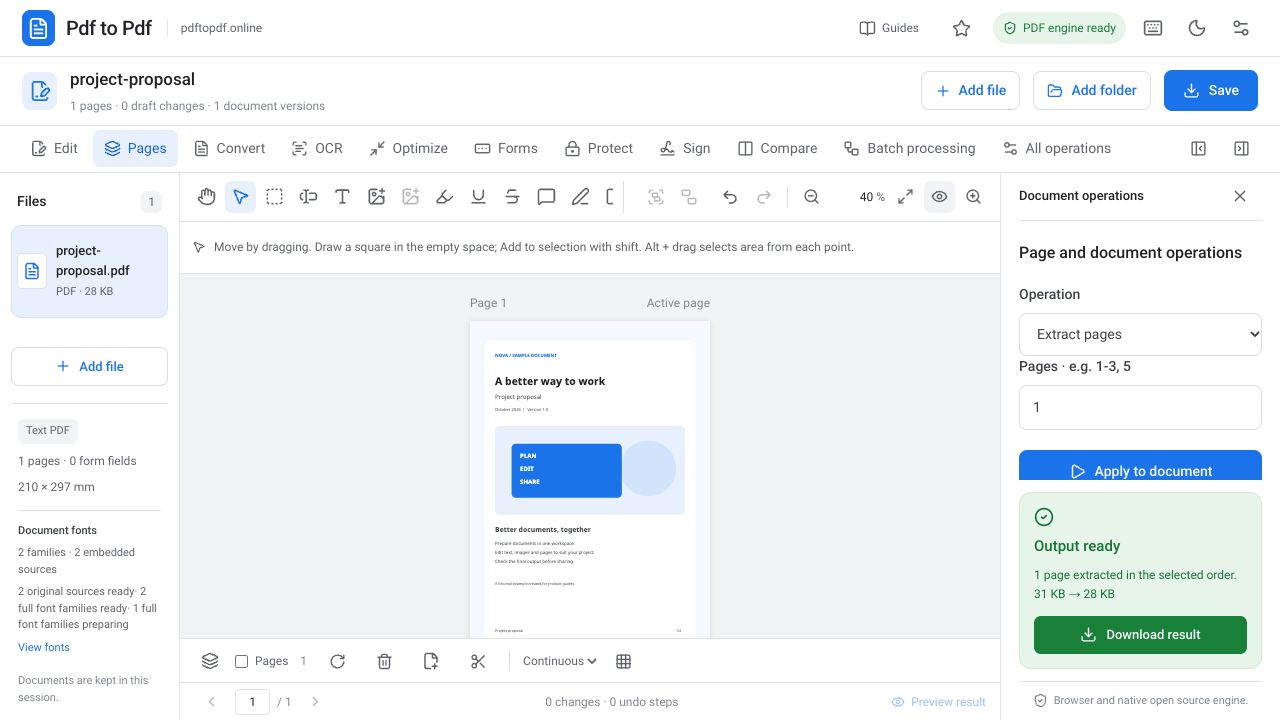
If one step does not correct a page, repeat the rotation. Two 90-degree steps produce 180 degrees in total, and three produce 270 degrees. An upside-down page and a page turned to the right do not need the same number of rotations. Group pages with the same problem rather than selecting pages with different orientations all together.
For example, in an eight-page file, pages 2 and 6 may be turned to the right while page 4 is upside down. Correct pages 2 and 6 together first, clear the selection, then handle page 4. Check the large preview after every step. Waiting for each operation to complete makes it easier to track which rotation belongs to which page.
A landscape PDF page is not always an error
Wide tables, architectural drawings and presentation slides are often designed in landscape orientation. If you can read the text normally, a landscape page is not inherently wrong. A landscape table within a portrait document can also be a valid layout. Assess readability and purpose rather than forcing all pages into the same shape.
Page rotation is different from choosing a page size and placing the content onto it again. Adapting content to A4, adding margins and reducing its size are separate operations. You do not need resizing when only orientation needs correction. Keeping this distinction clear prevents tables with small writing from being reduced unnecessarily.
Check readability and the rotated PDF output
Open the downloaded PDF in a new tab or another viewer. Go to the rotated pages first, then inspect neighboring pages you did not intend to change. An incorrect operation range may have turned previously correct pages sideways as well. Zoom into several lines of text to confirm that the top and bottom edges are where you expect.
If the document contains fillable fields, links or certificate-based signatures, test their behavior separately. A visually correct orientation does not show that every feature is unchanged. For printing, inspect orientation in print preview too; the printer's automatic rotation setting can operate independently of the changes made inside the PDF.
Save the result with a suitable name. Keeping the source and adding corrected to the new file name makes the version to share clear. If you realize that you rotated the wrong page, review the selection before making more changes. Avoid trying to solve the orientation problem by applying additional rotations at random.
When correcting several scanned files, review orientation for each document. Two files from the same scanner may have reverse-side pages inserted in different directions. Do not apply the rotation from the first file to the next without checking. Reviewing a few sample pages helps identify the shared problem and reduces unnecessary rotations across a large document.
Frequently asked questions
Can I rotate just one page in a PDF?
Yes. Select the relevant page in the bottom strip and apply rotation to it. Check that no other page boxes are selected.
How do I fix an upside-down PDF?
For an upside-down page, apply a 90-degree rotation twice to produce 180 degrees in total. Check both the preview and the downloaded file.
Does rotating a PDF reduce image quality?
You do not need to convert a page to JPG to correct its orientation. Zoom into text and small details in the rotated PDF output to verify them, especially in complex files.
Do I have to make a landscape table portrait?
No. A landscape page can be appropriate when the table reads normally. Assess orientation according to the document content.
Try this workflow on your document.
Open the appropriate tool in Pdf to Pdf, add your document, and check the result.
Open PDF page tools