Quick answer
PDF splitting is useful when you want to send only the pricing table from a proposal, separate a long report into sections or turn scanned paperwork into individual files. You do not need to prepare the whole document again. Deciding which pages should stay together usually produces a more useful result than turning every page into a separate file without a plan.
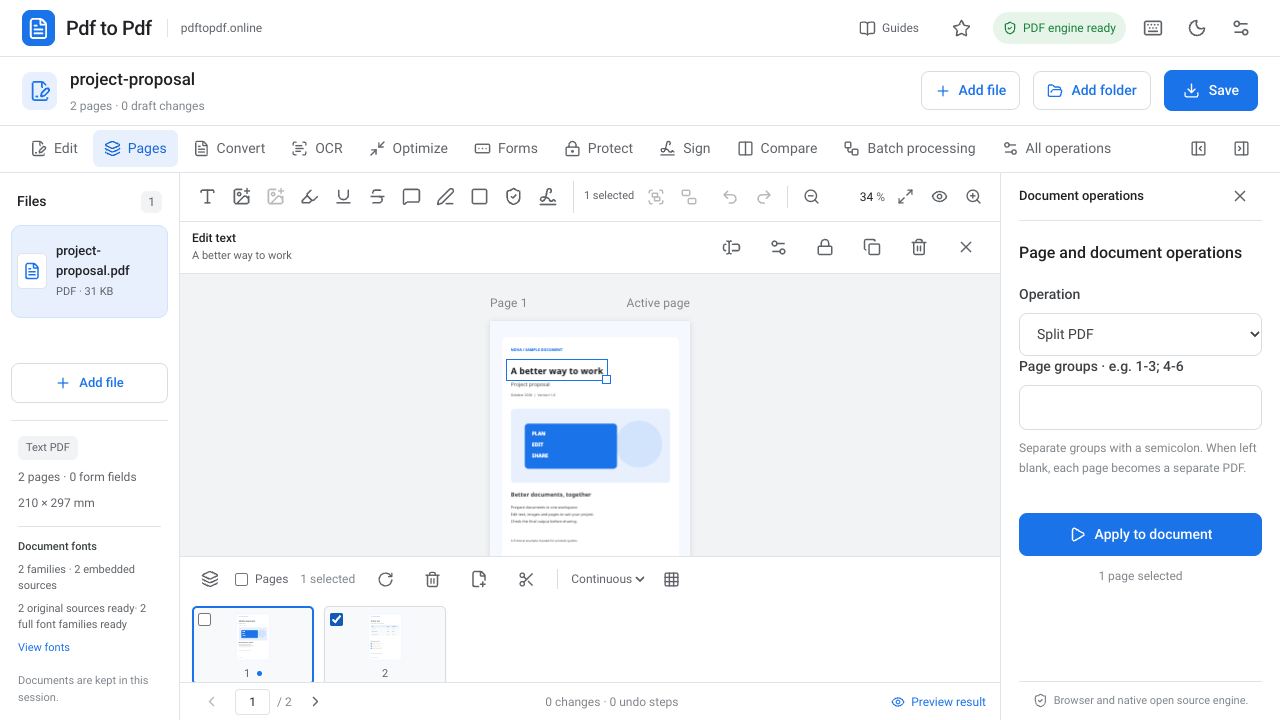
In Pdf to Pdf, you can separate PDF pages by entering page groups. For a 12-page file, for example, 1-3; 4-8; 9-12 creates three sections. Review the document in the page strip first, then enter the section boundaries and apply the operation. This guide explains how to choose correct ranges and what details to check in the downloaded files.
What is in this guide?
The difference between splitting a PDF and extracting pages
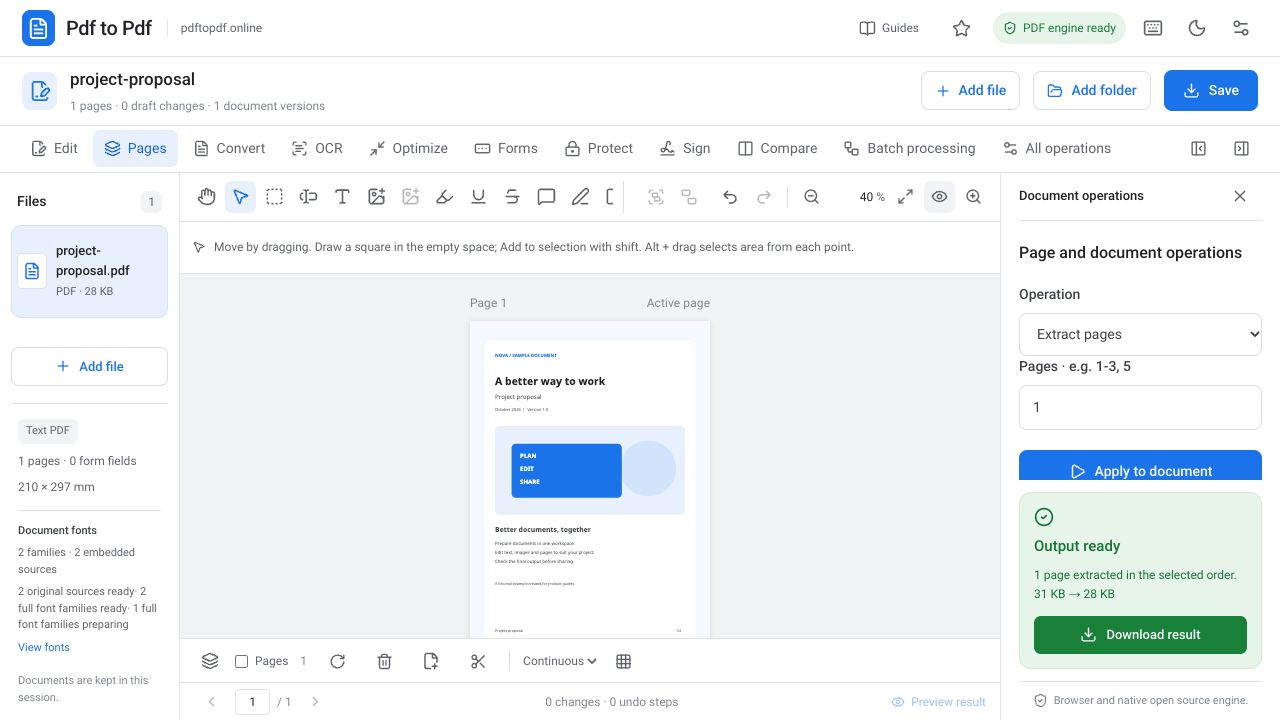
Splitting a PDF creates several new PDFs from one document. It is suitable when each unit of a training document needs to be sent separately. Extracting PDF pages puts the selected pages into one new document. If you only need pages 2, 5 and 7, for example, Extract pages provides a more direct route.
Deleting pages addresses a different need: it removes unwanted pages while keeping the rest together. Before starting, state your goal in one sentence. Saying that you want three separate sections, only the appendices or the blank pages removed helps you choose the correct tool among operations that can look similar when applied to the same file.
How to split a PDF online
After opening the file, inspect the first and last pages. The page position shown by a PDF viewer may differ from the page number printed inside the document. With a cover and contents page, the printed number 1 might begin on the third PDF page. Enter the actual position in the PDF in the range field, rather than relying on the printed label.
- Open the PDF splitter and upload your document with Select file.
- Open the page strip at the bottom and check the PDF pages where each section begins and ends.
- Choose Split PDF in the Pages group and enter ranges such as 1-3; 4-8; 9-12 in Page groups.
- Click Apply to document and wait for the operation to finish.
- Download the output. If multiple outputs are provided in an archive, open the ZIP file and check every PDF separately.
Enter page ranges without mistakes
Use a hyphen for consecutive pages within a group and a semicolon between different groups. The expression 1-4; 5-7 puts the first four pages into one PDF and the next three into another. If Page groups is left empty, every page becomes a separate PDF. Check this field carefully to avoid accidentally producing hundreds of outputs from a long document.
For example, when splitting invoices into three-page files, confirm that every invoice really ends after three pages. An inserted explanation page can shift the boundaries of all later groups. Even if the file name or section title is unchanged, use the actual sequence shown in the page strip. Do not apply a saved range list to another document without reviewing it.
Check the quality of the split PDF files
Separating pages does not require converting them into images and recreating them. For a file you only want to split, avoid first converting it to JPG and then back to PDF. That indirect route can change text selection, links and image sharpness. Use the split output directly as PDF as an appropriate starting point.
Open the first and last page of each section and compare the total page count with the expected range. Zoom in on small text, examine accented characters and, where possible, select and copy several lines. Check form fields, bookmarks and certificate-based signatures separately if they matter; do not assume that page operations preserve every interactive feature.
- Does the first section have the correct cover?
- Does a section end with a page that belongs in the next document?
- Is every selected page present in the intended output?
- Is the file name clear enough for the recipient to understand its contents?
Common problems when separating PDF pages
If the wrong page appears, a printed number has often been confused with the PDF position. Reopen the source and find the correct position in the thumbnails. If you receive many single-page files, check whether Page groups was left empty. If a password-protected document refuses processing, you may first need to remove protection with the password you know.
Do not delete the source before checking the result. Separate names such as Report-source.pdf and Report-section-1.pdf make versions easier to distinguish. If you later need an additional section, splitting again from the source gives a clearer workflow than compounding a sequencing problem by merging incorrectly ordered output files.
When sharing sections, use short names that describe what each file contains. Proposal-technical-appendices.pdf helps the recipient open files in the right order more than Appendices.pdf. You can also retain the section list used to prepare your page groups. When the source changes, compare it with that list to see whether the same boundaries still apply.
Frequently asked questions
Is PDF splitting free?
You can use the PDF splitting tool in the studio on this website. Open the file, define page groups and download the prepared output.
Can I make every PDF page a separate file?
Yes. Leaving Page groups empty in the Split PDF operation prepares each page as a separate PDF. Consider how many files this will create for a long document.
Should I enter printed page numbers or PDF positions?
Enter the actual page position in the PDF file. Covers and contents pages can make printed page numbers differ from the PDF sequence.
What should I use to put only a few pages into one PDF?
Use Extract pages. A selection such as 1-3, 5 collects the pages you want into a single output.
Try this workflow on your document.
Open the appropriate tool in Pdf to Pdf, add your document, and check the result.
Open the PDF splitter