Quick answer
Editing PDF text involves more than adding new writing on top of a page. When correcting an existing word, preserve its font, point size, position, and line layout together. Pdf to Pdf scans font sources when a document is uploaded. When it finds a suitable full font file, it validates and automatically prepares it for the relevant text.
PDF files are not all created the same way. Some contain full fonts, some contain only the characters already used, and others convert text into unnamed drawings. A suitable workflow is to select existing text and inspect its font status first, then make a small change and check the output.
What is in this guide?
Changing existing PDF text and adding new text
Placing a white rectangle over writing and typing new text is not the same as replacing the underlying text. On a colored or patterned background, this can leave a visible patch. If the original text remains in the file, search and copy behavior may also differ from what you expect.
Existing text editing takes the positions of source characters and PDF objects into account. The add-text tool is suitable for a new note; correcting a catalog heading requires the existing-text editing workflow. Distinguishing these purposes before you start gives you more control over appearance and output.
How to edit text in a PDF
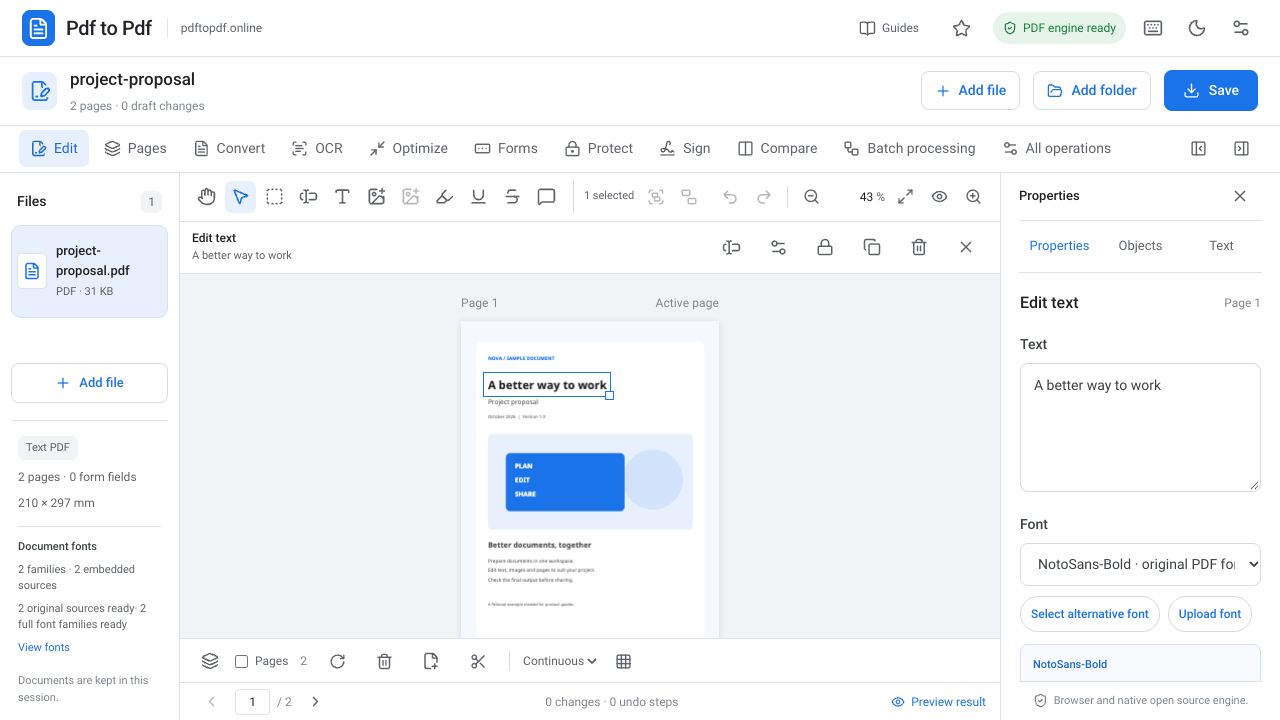
After uploading the file, zoom in on the page containing the text. Use existing-text editing mode to target text rather than a shape above it in a layered document. Object settings appear in a panel that does not cover the page. You can edit text in place or change it through the properties field.
- Upload the PDF to the editing studio and wait for the document fonts to be scanned.
- Choose “Edit existing text” mode and click the target line.
- Check the source font information and automatic preparation status.
- Double-click the text for in-place editing or open its text properties field.
- Change a short word first; keep the font size and position unchanged initially.
- If you add accented or other international characters, confirm that the font supports them.
- Download the PDF, zoom in on the same area, and search for the text to check the result.
What does the PDF font finder validate?
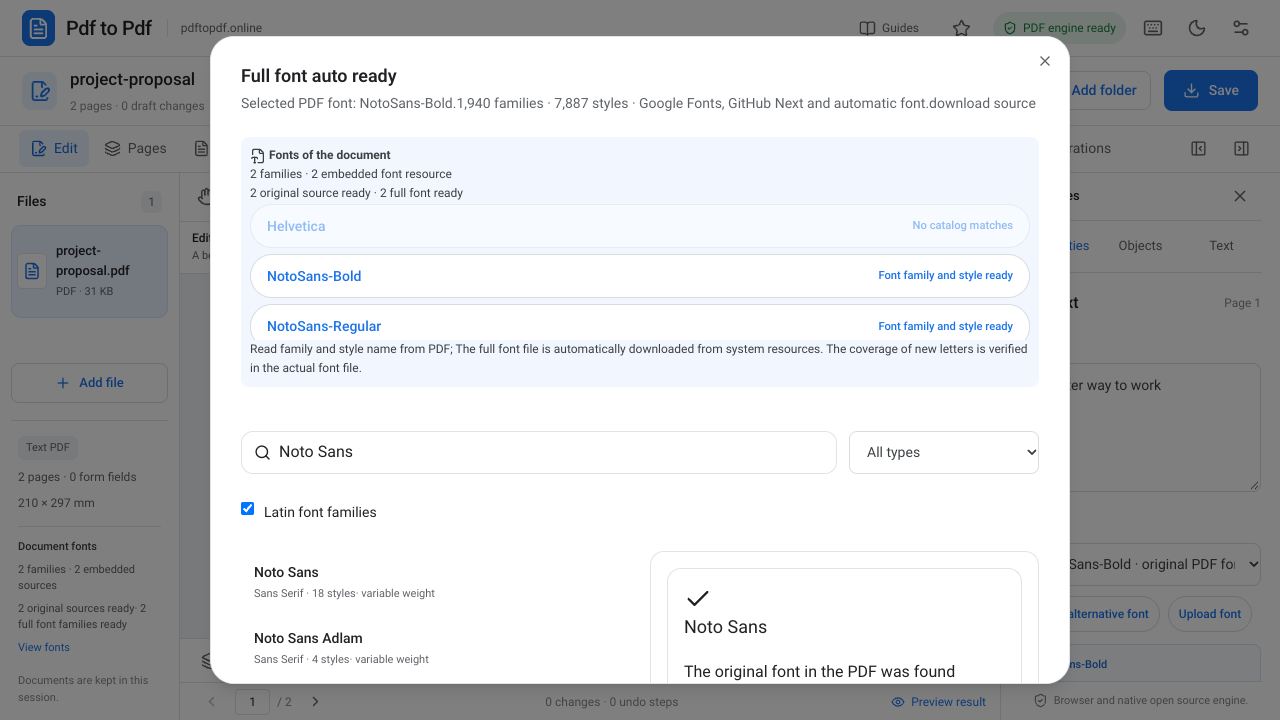
A font name in a PDF sometimes carries a subset prefix made of letters, such as an additional source label before the family name. The system uses this information to identify a candidate font. A name resembling the same family is not enough on its own; the identity of the full font file and support for the new text’s characters also need validation.
Font preparation sources include Google Fonts, Monaspace, and font.download for suitable matches. The font name read from the document is used in the search, and the font file is linked to the relevant text selection after it is found and verified. Font distribution and usage terms vary. When uploading your own font file, consider its license and suitability for use in a PDF too.
Why can some characters be missing even when the font name is known?
A font embedded in a PDF is called a subset font when it contains only the characters already used in the document. A source embedded for an all-capital “INTRODUCTION” heading may not contain lowercase letters or accented characters needed in a new name. Existing text can look correct while a new word requires the full font file. Knowing the source name does not fill in those missing characters automatically.
In unnamed Type3 sources, characters may be defined with custom drawing commands. It is not always possible to associate such writing definitively with a standard font family. The system may display a warning for text it cannot safely replace. Choosing a different font for a new appearance should be a deliberate decision separate from preserving the original font.
Why can a line change even with the same font and size?
The new word’s character widths can differ from those in the original. A longer name at the same point size may extend into a nearby shape or column. This does not necessarily indicate a font matching error. Assess the area occupied by the text first, then adjust the layout or choose a shorter expression if needed.
Character spacing, horizontal scaling, and rotation also affect appearance. In catalogs exported from design tools, one line may be split across several text objects. After moving text, inspect letter spacing and neighboring lines instead of checking only the selected box’s position.
Checking output quality after editing PDF text
The preview makes editing easier, but make the final assessment using the downloaded file. Inspect the changed word, the graphic immediately beside it, and another part of the page. This checks both the text’s appearance and preservation of areas that should not have been affected.
- Does searching for the new text find the correct word and page?
- Do accented and other international characters display and copy correctly?
- Do the point size, baseline, and letter spacing match the intended appearance?
- Are the background color, images, and vector shapes behind the text preserved?
- Does the document look the same in another PDF reader?
Frequently asked questions
Is the PDF font selected automatically?
When a matching full font file is found and its identity and character support are verified, it is prepared automatically for the relevant text and linked to its selection. An exact match is not guaranteed for every PDF source.
Why can I not replace text even when the font name is known?
A font name and a full font file are different things. The PDF may contain only characters already used; new characters may require the correct complete file. Unnamed or drawing-based sources can introduce further limitations.
Can the font size stay the same when I change PDF text?
You can start by preserving the source point size and position. However, the new word can have a different width, so check whether the line still fits. The same point size does not guarantee that different text occupies the same space.
Why can I not select existing writing in a scanned PDF?
The writing is part of an image. OCR can create a text layer for searching and copying, but it does not turn the photographed letters into original-font text objects.
Try this workflow on your document.
Open the appropriate tool in Pdf to Pdf, add your document, and check the result.
Edit PDF text