Quick answer
PDF OCR recognizes letters on scanned pages and adds a searchable text layer to the document. If your PDF opens but you cannot select, copy, or find a word with search, the page is probably an image. OCR connects that image to readable text.
Good results require more than clicking a convert-to-text button. Consider the language, scan orientation, and readability of the source page together. The workflow below helps you configure English OCR or select another document language, then check names and numbers before using the result.
What is in this guide?
The difference between a scanned PDF and a text PDF
A PDF that looks sharp on screen does not necessarily contain text. A document created from a phone photo, scanner output, or screenshot may contain only pixels. Try selecting several lines first. If individual words can be selected, a text layer already exists; if the page behaves like one large image, you need OCR.
Mixed documents can vary from page to page. For example, the first page of an application may have been typed on a computer while its attachments were scanned. Starting with OCR only on pages without text is often more suitable than processing the entire document again.
How to run PDF OCR online
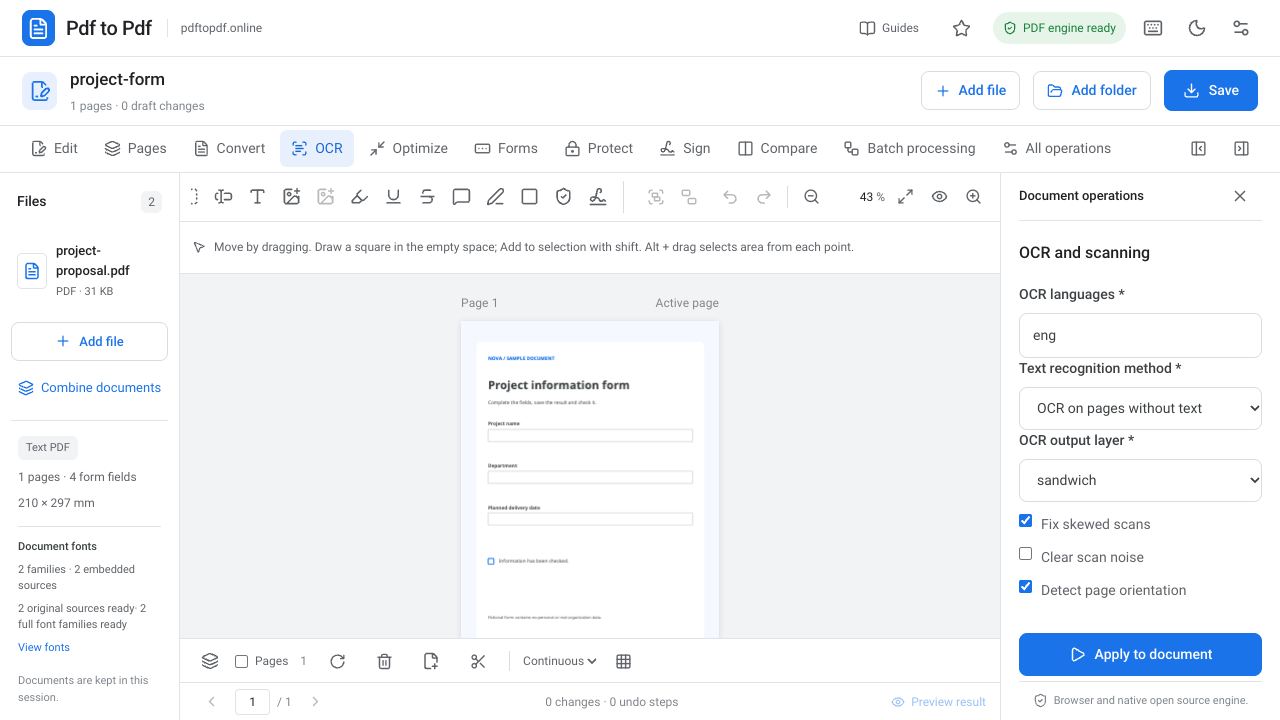
After adding your document to the studio, check the page count and preview. Use the OCR panel to choose the recognition language and output behavior. Verify the searchable output before starting another text editing task so that you do not confuse the source scan with its new text layer.
- Open the PDF OCR tool and upload your scanned PDF.
- Choose eng for English text in the OCR language settings; select other languages when the document contains them.
- For your first attempt, choose “OCR pages without text.”
- Decide whether deskewing and page orientation correction are appropriate for the scan.
- Start the process with “Apply to document” and download the output when it is ready.
- Search for a distinctive sentence in the downloaded PDF and paste selected text into a plain text field.
Choosing the right OCR language and scan quality
Correct language selection matters for spelling and character recognition. Accented letters and language-specific characters may be mistaken for similar characters when the wrong language is selected. Choose multiple languages if the document actually contains them; adding unnecessary languages does not automatically improve recognition.
OCR cannot recreate details lost in a low-resolution, shadowed, or heavily compressed scan. If small print is unreadable, rescan the document where possible. A flat surface, even lighting, and a complete page frame provide a better starting point than sharpening a blurry image afterward.
A searchable PDF does not recreate the original editable text
OCR can preserve the visible page scan while matching recognized words to a separate text layer. This is useful for searching and copying. However, the printed letters in a photograph do not become the original font program or editable character objects.
If you need to correct an amount on an invoice or a name in a contract, changing only the search layer will not change the visible scan. First establish whether the document contains text objects or scanned images. Editing a source image and editing an existing PDF text object are different operations.
What to check when OCR recognizes text incorrectly
If letters appear out of order within a line, check the page orientation and scan skew. Multiple columns, footnotes, tables, and stamps crossing text can affect reading order. Identify the problem page and adjust language and orientation settings on a small sample first. Narrow down the cause instead of repeatedly processing a long document at random.
If a file already has a text layer with incorrect words, “OCR all pages” may produce a different result. Try this on a separate output because it can change the behavior of existing text. Handwriting on a page also does not justify expecting the same accuracy as recognition of printed text.
Checking OCR output: names, numbers, and line order
Do more than confirm that the file opens. Select a name, a date, a monetary amount, and an account number if present. Include words containing accents or other language-specific characters when relevant. Paste the selected text elsewhere and compare it with the visible scan. Similar characters, especially 0 and O or 1 and l, need individual checks in critical fields.
- Do the page count and orientations match the source file?
- Does a text search take you to the correct page?
- Is the reading order understandable when table cells are copied?
- Are the visible scan, signatures, and stamps still present in the output?
Frequently asked questions
Why can I not select text in a scanned PDF?
The page may contain only an image. OCR recognizes the letters in that image and creates a text layer for searching and copying. Try selecting text on several pages first to identify the document type.
Which characters should I check after OCR?
Check names, numbers, accented letters, and any characters specific to the language of your document. Similar shapes such as 0 and O or 1 and l also deserve attention. Even with the correct language selected, poor scans can be recognized incorrectly.
Can I change the PDF font after OCR?
OCR produces recognized text; it does not recreate the original font of the visible letters in the scan. Editing existing text in a text PDF and making changes to a scanned image are different workflows.
Can one PDF contain both text pages and scanned pages?
Yes. For a mixed document, you can start with “OCR pages without text.” Afterward, check that both the text sections and scanned attachments have been preserved correctly.
Try this workflow on your document.
Open the appropriate tool in Pdf to Pdf, add your document, and check the result.
Open PDF OCR