Quick answer
Fitting an Excel spreadsheet to PDF pages does not mean squeezing everything onto one tiny page. Keeping the width on one page while continuing a long list of rows over several pages usually produces a more readable report.
If your PDF output is split into hundreds of pieces, first check the print area, unnecessarily formatted cells, and pagination settings. When uploading Excel to Pdf to Pdf, choose the smart layout, source layout, or one-page-per-sheet layout that suits the document.
What is in this guide?
Why does Excel to PDF create too many pages?
A workbook with a small-looking table on screen does not necessarily have a small print area. Borders, fills, or old print areas applied far beyond the table can expand the output boundary. If a few real data columns share a print area with hundreds of empty columns, the output is split unnecessarily both horizontally and vertically.
Another cause is placing a wide table on portrait A4 paper at its normal scale. Each group of columns may require a separate page, and a long row list multiplies those pieces. Think about the actual table width and print layout before converting to reduce the problem from the start.
Steps to convert an Excel file to PDF
Keep the original workbook separately. PDF is a presentation format; you still need the Excel file to change cells, formulas, and the editable workbook structure. Use the first conversion for inspection, then change the layout choice and generate another output if necessary.
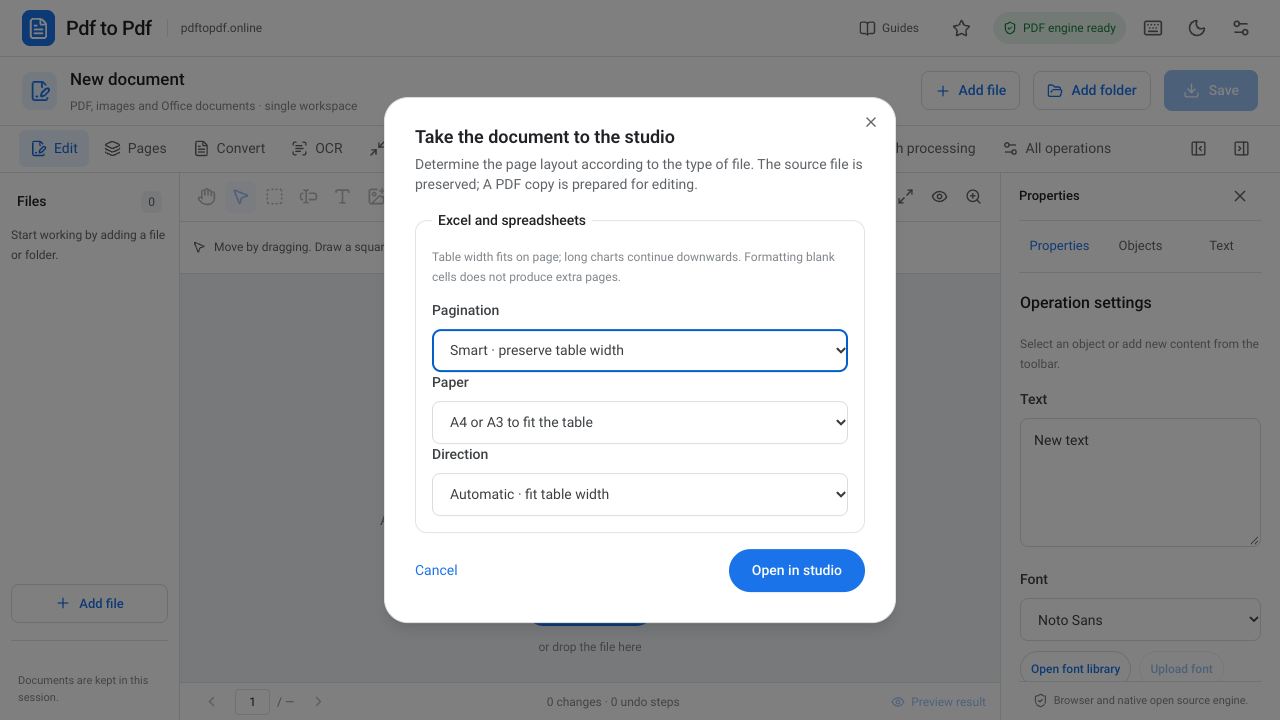
- Open the add-file control in the studio and select your XLSX, XLS, or ODS document.
- Choose smart pagination in the Excel import settings for the first attempt.
- Leave paper size on automatic or select A4 or A3 for the target output.
- Consider landscape orientation for a table with many columns; automatic orientation is also a starting option.
- After importing, check the total page count in the page strip.
- Zoom in on the first, middle, and last pages to inspect how rows and columns continue.
- Download the PDF and open it in a PDF reader to verify the output.
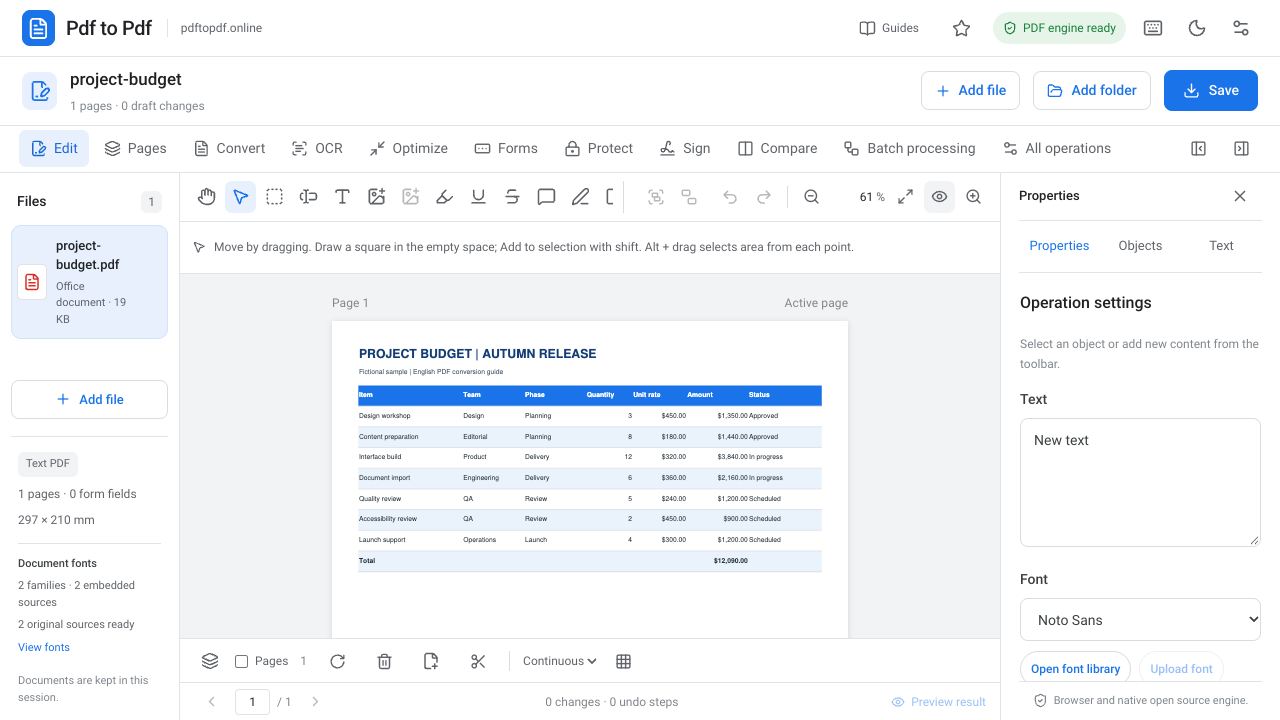
Smart pagination: one page wide, as many pages tall as needed
Smart pagination aims to fit a worksheet’s columns within one page of width and continue the rows over as many pages as needed. You can follow rows from top to bottom instead of moving left and right between pages for one record. This can help with shipping lists, inventory reports, and financial tables.
However, a very wide table may produce small text when fitted to one page. Try A3 paper or landscape layout in that case. Fewer pages do not always make a better output: if names, product codes, and amounts are difficult to read, splitting the table into logical column groups may be more appropriate.
When to preserve the source layout or choose a single page
Preserve the source layout when the workbook already has a prepared print layout, intentional page breaks, or a specific print area. Existing layouts can be meaningful, especially for signature sections and official form templates. Smart pagination changes the scale, so compare both outputs before deciding.
Displaying one worksheet on one page can work for short summaries. Forcing a list with thousands of rows into this format can make it unreadable. Word documents and presentations follow different layout rules; applying Excel pagination settings unchanged to those files is not an appropriate conversion approach.
Removing blank pages and fixing clipped columns
If the output contains completely blank pages, identify the last real data row and column in the source workbook. An old print area, distant cells containing only formatting, or hidden rows may expand that range. Correcting the print area around the required range in the source file can be more efficient than deleting hundreds of pages after conversion.
Clipped column headings or long descriptions inside cells are a different problem. Source cell widths, text wrapping, and merged cells affect the PDF too. Changing pagination does not automatically rewrite all cell content, so inspect the source spreadsheet as well.
Final checklist for an Excel PDF output
Evaluate the total page count alongside the length of your source data. A scale that works well for one workbook does not guarantee the same result for another. Check displayed formula values, date formats, and accented or other international characters during the first attempt.
- Are the first and last data rows included in the output?
- Are columns from the same row split horizontally across different pages?
- Are decimal separators, dates, and currency formats correct?
- Have all required worksheets been converted?
- Is the text size readable without zooming for the intended use?
Frequently asked questions
Why does my Excel PDF output contain hundreds of pages?
Possible causes include an unnecessarily large print area, formatting on distant cells, or transferring a wide table to small paper at normal scale. Try smart pagination and inspect the source print area.
Is converting Excel to a single PDF page always best?
No. Very long or wide tables may become too small to read when squeezed onto one page. Keeping the width on one page while continuing rows over several pages is usually more suitable for long reports.
Can I edit Excel formulas after converting to PDF?
A PDF is not used to edit cell formulas as Excel does. Keep the original workbook if you need to continue working with formulas, and use the PDF for sharing or printing.
Should I choose landscape A4 or A3?
First inspect column layout and text size in a landscape A4 output. If the text is still too small, A3 provides more space. Do not decide by page count alone.
Try this workflow on your document.
Open the appropriate tool in Pdf to Pdf, add your document, and check the result.
Add an Excel file to the studio