Quick answer
Adding a PDF watermark lets you mark pages visibly as “DRAFT,” “SAMPLE,” or a similar status. Page numbers make long documents easier to navigate and printed outputs easier to keep in order. Neither addition should cover the main content.
Pdf to Pdf lets you adjust watermark text, point size, opacity, angle, and color, as well as the starting value and placement of page numbers. Before applying the operation to the entire document, consider sections such as the cover, landscape pages, and appendices. This helps distinguish visible numbering from the document’s physical page order.
What is in this guide?
What a PDF watermark does and does not change
A watermark indicates a document’s visible usage status. It can mark a draft quotation as “DRAFT” or distinguish a sample from the final version. Adding a watermark does not automatically provide access restrictions, copying prevention, or a verified ownership certificate. Those purposes require different document protection tools.
Keep watermark text short for readability. Large dark lettering can cover cell values in dense tables. If the goal is to indicate document status, a translucent and controlled placement is often sufficient. Balance the visibility of the mark with readability of the content.
How to add a watermark to a PDF
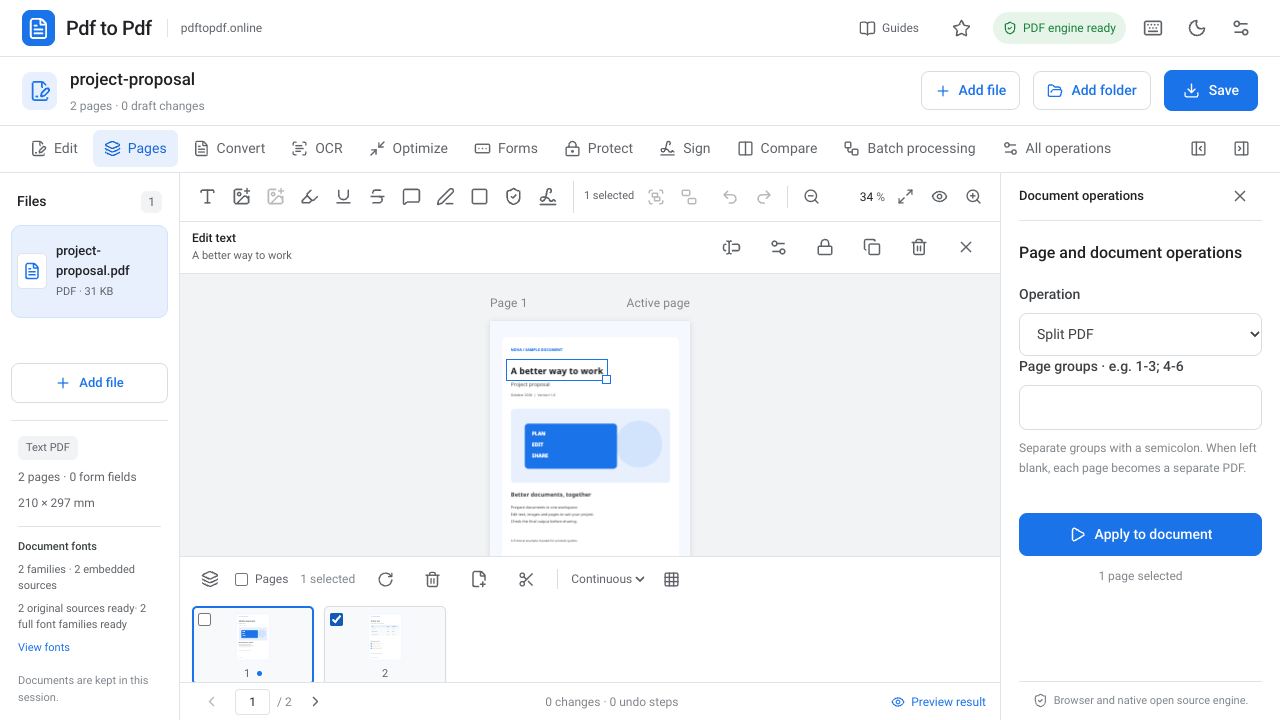
After opening the watermark panel, choose values appropriate to the document. The same settings can look different on a short contract and a large presentation page. Do not judge point size and angle by numbers alone; inspect their relationship with the content in the preview after applying the operation.
- Open the watermark tool and add your PDF to the studio.
- Enter watermark text, such as “DRAFT,” in the appropriate field.
- Choose the font size, color, and an opacity value between 0 and 1.
- Adjust the angle if you want the lettering to slope.
- Choose the page range and specify only the required pages when appropriate.
- Use “Apply to document” to create the result and check that text and tables remain readable.
Adding PDF page numbers: starting value and position
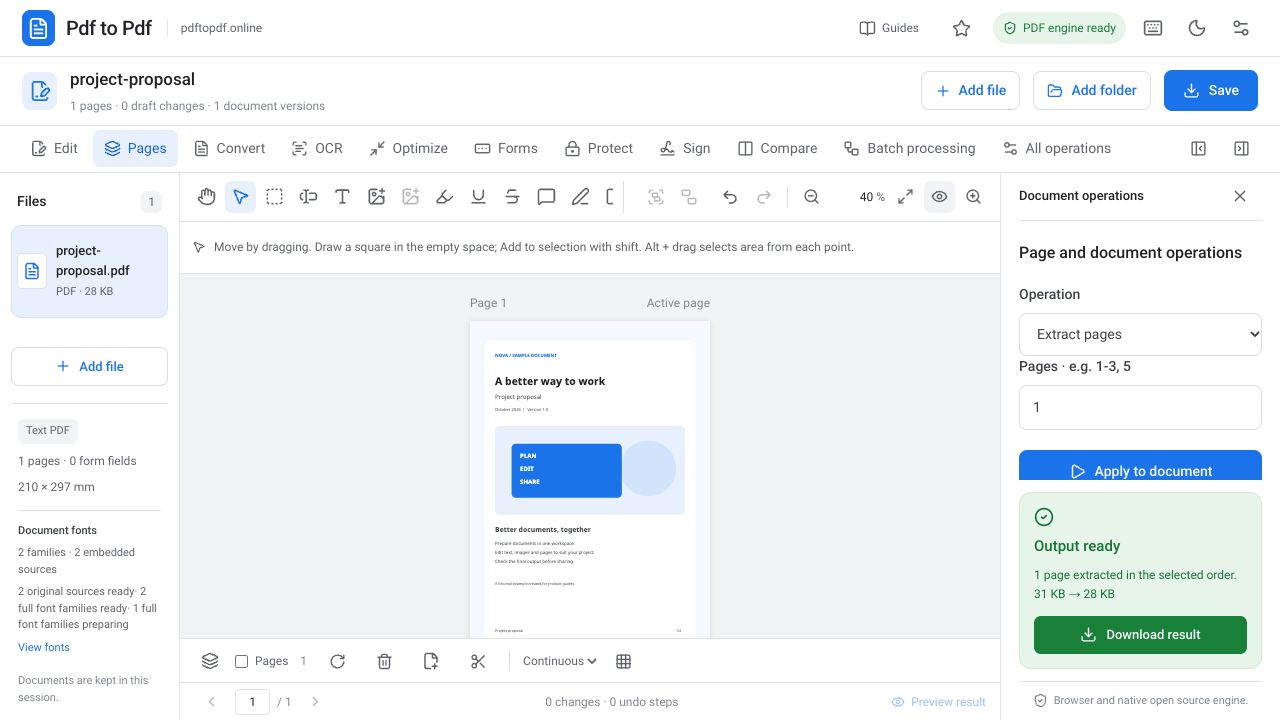
Switch to the “Page numbers” tool for numbering. The starting value determines where visible numbering begins. Position options cover the left, center, and right of the top or bottom area. For documents containing headers, footers, or signature fields, choose a location that avoids existing content.
To leave the cover unnumbered, set the page range to begin after it and check the starting value together with that choice. A PDF reader’s physical page order may differ from the visible number printed on a page. New numbering does not automatically remove old page numbers.
Old and new numbers in a merged PDF
Each part of a file assembled from multiple documents may have its own page numbers. After adding new numbers, some pages may show two sets. Complete the page order first, edit old numbers if necessary, and then apply new numbering to the entire file.
Deleting or adding pages after merging can change the meaning of visible numbers. Numbering is therefore usually best applied after the document layout is complete. If you change page order later, check the number sequence again instead of reusing an earlier output without review.
Appearance on landscape, portrait, and mixed-size pages
A single PDF can contain a portrait A4 report, a landscape table, and a larger appendix page. The visible area differs even when the watermark angle and point size are the same. Check the numbering position in each section too, particularly in relation to existing footers.
Use the page strip to find representative pages of different sizes. Inspect the same operation on the cover, first content page, landscape table, and final appendix. Range settings clarify which pages are actually targeted before applying one mark across different parts of a document.
Avoid applying the watermark twice by mistake
Opening an already processed output as a new source and adding the same watermark again can darken the text or create overlapping marks. Repeating numbering can likewise leave duplicate digits on a page. Keep the original PDF during experiments and track which operations were applied to each output.
Perform the final check on the downloaded file. Looking only at the first page is insufficient. To verify the range choice, inspect one page that should receive the operation and one that should not. Also check that important amounts, table headings, and signature fields remain easy to read.
- Does the watermark appear once on the target pages?
- Do page numbers follow the expected sequence from the starting value?
- Does an old footer or number overlap the new number?
- Is the intended range correct for the cover and appendices?
- Is the original PDF still available as a separate file?
Frequently asked questions
Does a PDF watermark prevent content from being copied?
A visible watermark alone does not block copying or access. It indicates the document’s status. Passwords and other protection requirements need separate tools.
Can PDF page numbers start at a value I choose?
You can adjust the starting value in the numbering panel. Check it together with the selected page range because physical page order and visible numbering can differ.
Can I leave the cover page unnumbered?
Set the page range to begin after the cover. Inspect both the cover and the first numbered page in the output to confirm that the sequence starts as intended.
Does adding new numbering remove old page numbers?
No. Existing visible numbers may remain as part of the document content. Review old numbers first, then place the new numbering where it will not overlap.
Try this workflow on your document.
Open the appropriate tool in Pdf to Pdf, add your document, and check the result.
Add a PDF watermark