Quick answer
Filling PDF forms is a common task for application documents and contact forms, but not all PDF forms have the same structure. Some contain clickable text fields and checkboxes, while others are simply pages with blank lines or scanned images. The appropriate method depends on whether the document contains actual fillable fields.
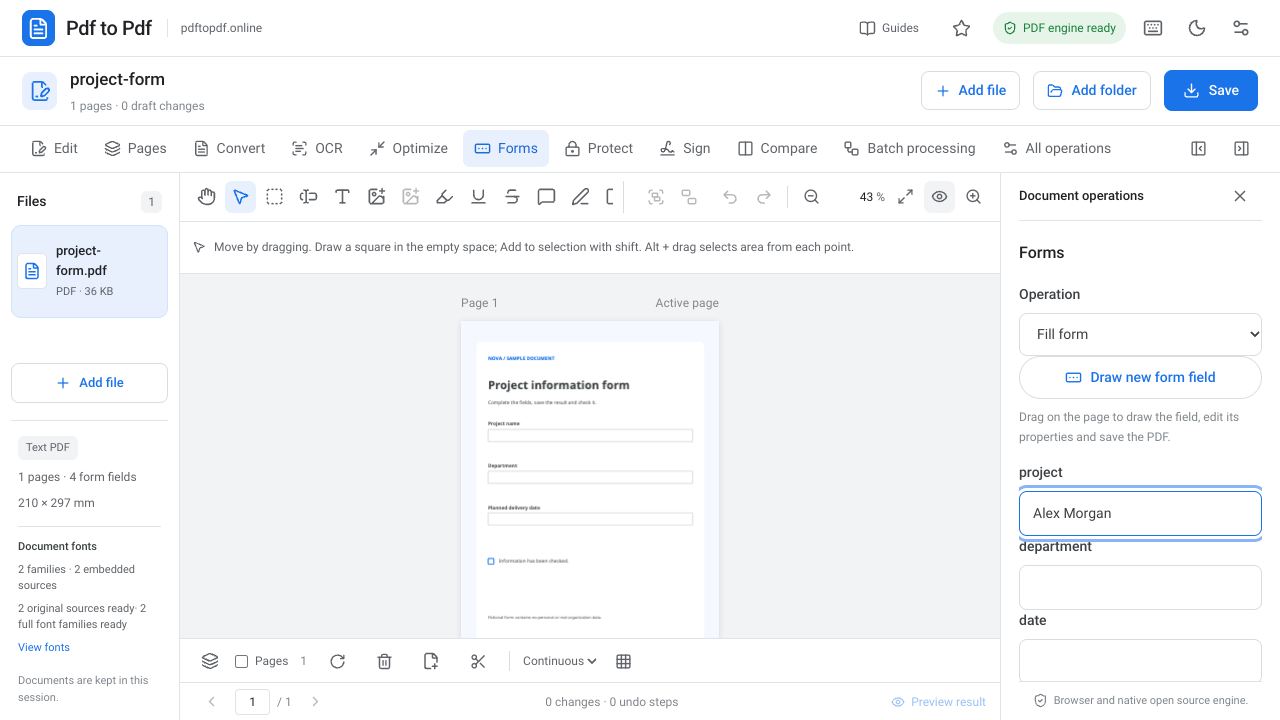
The Forms area in Pdf to Pdf lists supported AcroForm fields. Text fields, checkboxes and choices can be completed there. If no fields exist, you can add text in the available spaces or create new form fields. This guide explains the difference between detecting fields and visually completing a form, along with the checks needed for the downloaded output.
What is in this guide?
The difference between a fillable PDF and a scanned form
In a fillable PDF, the first name, last name or date box is a genuine form field. Its name, type and value are stored within the document, allowing the filling panel to display each field separately. On a visual form, boxes may be drawings only. Even selectable PDF text does not automatically make those boxes fillable fields.
A scanned application form is usually a page image. Placing text over it completes the appearance of that particular copy without turning the image into a reusable form. If other people need to fill out the document too, use the new-field function. Do not assume that alternative structures such as XFA or special field types are supported in this workflow.
How to fill a PDF form online
After opening the file, choose Fill form in the Forms group. The supported fields in the document are listed in the panel. Field names may be technical names chosen by the document's author. Compare the panel name with the label printed on the page to make sure you are entering information into the correct box.
- Open the PDF form studio and upload your document.
- Choose Fill form in the Forms panel and review the detected fields.
- Complete text boxes, check required checkboxes and choose appropriate values from lists.
- Click Apply to document to write the values into the PDF.
- Download the output and check field values and appearance in another PDF viewer.
What to do when no PDF form fields are found
The message No fillable AcroForm fields found does not always indicate a broken file. The document may look like a form while containing no interactive fields. For a document that needs filling only once, add text in the Edit area. Align the beginning of the text with the blank line, size it to the available space and avoid covering the background instructions.
For a reusable form, use Draw new form field in the Forms panel. Drag on the page to define the field position, edit its properties and save it into the PDF. Give fields distinct, understandable names. Reusing the same name for boxes with different meanings can make their values change together unexpectedly.
Long text, accented characters and choice fields
A field that looks wide on screen will not necessarily fit every long value comfortably. For addresses or explanations, confirm that the final word is visible. Insufficient line count or field height can cut off text. If field properties permit, enlarge the field; inspect neighboring boxes before disrupting the source layout.
Enter a sample value containing accented or other non-ASCII characters and review how it appears. For choice fields, use the options offered by the panel. Existing radio buttons and option lists should not be treated as an editor that reconstructs the exact original button appearance. When an unsupported field type is reported, do not assume it was filled successfully.
Flatten a PDF form or leave it fillable
Keeping a completed form editable and flattening its fields serve different purposes. Flattening writes the field values into the page appearance and removes interactive filling behavior. This may be suitable when the recipient should receive a finished presentation of the values. If you will need to enter new data later, preserve a fillable copy as well.
When reviewing output, check that fields are not only populated but also kept distinct. Fields defined with the same name on different pages may be linked. Go through every page in the final file to verify that entries remain in the correct boxes. Indicate the version in the file name to avoid confusing the empty template with the completed document.
If a signature is needed, finish the field values first and apply the required signing method afterward. Distinguish a visual signature from a certificate-based one. Finally, open the downloaded PDF in a viewer similar to the recipient's application to catch differences in form appearance early.
Read the form instructions to check for missing required fields; conditions may be marked with asterisks or footnotes. Follow the document's examples for values such as dates and phone numbers. A populated field does not establish that the information is correct. Base the final check on the meaning of the requested information as well as the page appearance.
Frequently asked questions
Can every PDF form be filled automatically?
No. The filling panel uses supported AcroForm fields. Scanned images, drawn boxes and some special form structures require a different approach.
Can I add text if a PDF has no form fields?
Yes. Place text in the blank space using the editor. If you need a reusable form, create new form fields instead.
What does flattening a PDF form mean?
It writes field values into page content and removes interactive filling behavior. Keep an unflattened copy separately if you need to fill it again.
How should I check accented characters in a PDF form?
Enter a sample value containing the accented or non-ASCII characters you need. Apply the operation and review their appearance in the downloaded file.
Try this workflow on your document.
Open the appropriate tool in Pdf to Pdf, add your document, and check the result.
Open the PDF form studio