Quick answer
You do not always have to print and rescan a document to add a signature to a PDF. Placing a visual signature directly on the page is practical for approval notes, delivery documents and personal working files. The location, scale and readability of nearby text matter for producing an orderly result.
First distinguish the type of signature requested. A signature drawn onto a PDF is a visual mark. A certificate-based digital signature is a separate operation containing certificate and verification information. This guide explains how to add a visual signature. If the recipient requires a specific certificate or another verification method, a signature image alone may be insufficient. Establish the required method before preparing the final file.
What is in this guide?
Visual signatures and certificate-based signatures
A visual signature is a drawing or signature image visible on the page. The person opening the document can see it, but the appearance alone provides no certificate-based verification. Searches for signing a PDF cover both of these different needs, which makes choosing the appropriate tool important.
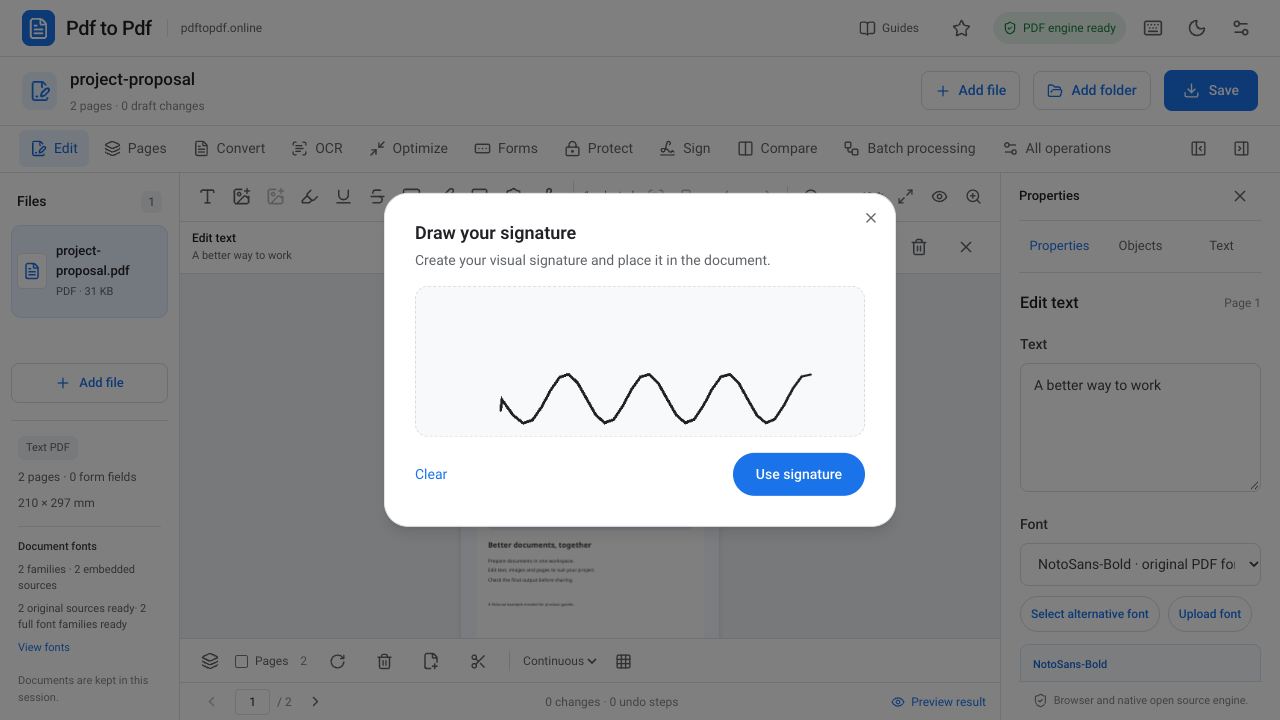
In Pdf to Pdf, Draw signature in the Edit area creates a visual signature. The Sign group at the top contains engine operations such as certificate signing, signature verification and removal of certificate signatures. Clicking the visual signature button and running a certificate operation produce different results. Confirm the recipient's required method before sending the document.
How to add a PDF signature online for free
Open the page that needs a signature and zoom into the signature box. A sufficiently wide drawing area helps when signing on a phone. If the drawing window is open, complete the signature before returning to selection and movement on the document. Then use the signature and adjust its position on the page.
- Open the editor and upload your PDF.
- Go to the required page and choose Draw signature in the toolbar.
- Draw your signature. Use Clear to start again if the result is unsatisfactory.
- Click Use signature and select the resulting signature object.
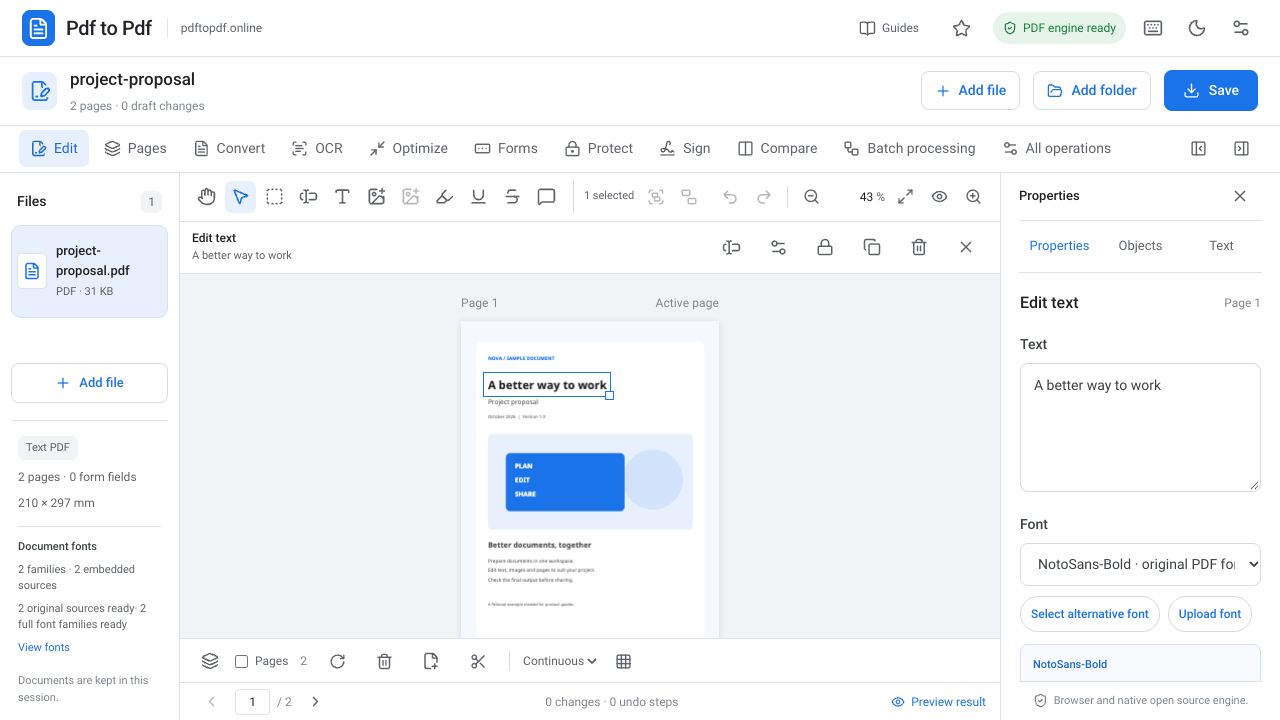
- Move it into the appropriate box, resize with the corner handles and download the PDF output.
Set the signature size and position correctly
The signature does not need to fill the entire box. Leave readable space between it and information such as a name, job title and date. Going beyond the signature line or covering the text underneath can prevent the reviewer from reading required details. Adjust the general position first, followed by the size.
When a signature is too small, fine strokes may disappear at a low zoom level; when it is too large, its natural appearance can suffer. Resize while watching the aspect ratio, then return to normal reading size to assess the result. If signatures are needed on several pages, check each separately rather than assuming the boxes are always in the same position.
Things to check in a previously signed PDF
An existing signature image does not mean the PDF is signed with a certificate. Equally, a document with no visible signature image can contain a digital certificate signature. If the document's signing status matters, use the verification tool rather than relying only on its appearance on the page.
Adding a new object or changing pages in a certificate-signed file may affect the existing signature's verification status. Treat the changed output as a new document version. Completing all edits first and then applying a certificate signature when required creates a clearer sequence of operations. Keep the original signed file separately when its verification status needs to be preserved.
Check the output after adding a signature
Reopen the downloaded PDF and confirm that the signature is in the same position as the draft on screen. Zoom in to check its strokes, then inspect the overall layout at normal size. This reveals problems such as a signature cropped at an edge, overlapping the name line or colliding with another object.
There is no need to convert the document to JPG and back to PDF after adding the visual signature. That extra conversion can alter the text structure and image quality of the whole page. Use the PDF output directly. If printing is planned, check scaling and margins in print preview as well.
Indicate the new version in the file name and keep the source document separate. A signature image can be personal information, so use it only in files where you need it rather than making unnecessary copies. Before sending, confirm that the signature is on the page requested and uses the method the recipient requires.
If the form requests a date or full name beside the signature, add those values as separate text objects. Follow the form layout instead of squeezing tiny additional text into the signature drawing. In a document with boxes for several people, identify your own field clearly and verify that you have not signed in another person's space.
Frequently asked questions
Can I draw a signature with a mouse or phone?
Use the drawing area in Draw signature. Once finished, add it with Use signature and adjust the size.
Is a visual PDF signature a certificate-based digital signature?
No. A visual signature is a drawing visible on the page. A certificate-based signature requires a separate certificate operation and verification information.
Can I move a signature placed in the wrong position?
Yes. Select the signature object in the editor to move, resize or remove it. Check its final position again in the downloaded PDF.
Where is the certificate signing tool?
The Sign group in the studio contains certificate signing and signature verification. That operation requires the necessary certificate and engine connection to complete.
Try this workflow on your document.
Open the appropriate tool in Pdf to Pdf, add your document, and check the result.
Open the PDF signature editor