Quick answer
Adding a password to a PDF makes opening the file depend on knowing that password. For salary statements, personal records or internal reports, it provides a layer that makes accidental access harder. Adding a password does not remove incorrect information from the document and does not meet every sharing-related security need on its own.
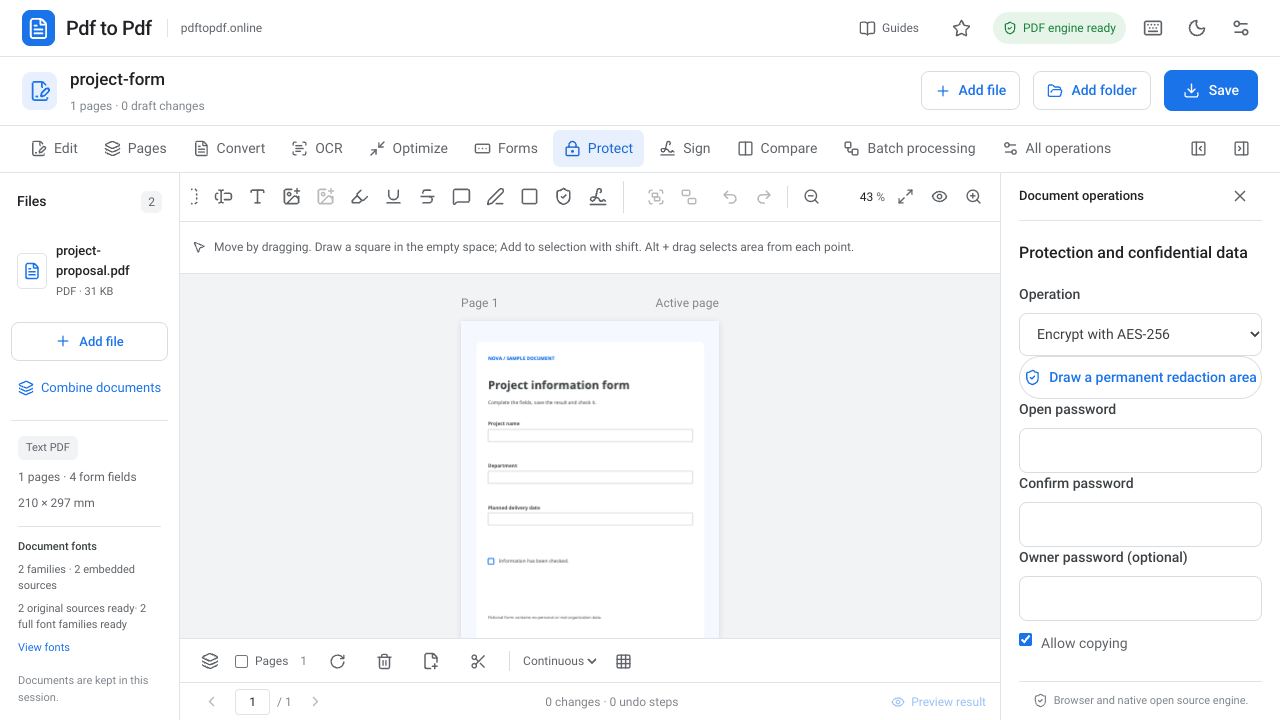
The encryption operation in Pdf to Pdf includes an opening password, password confirmation, optional owner password and copying permission. It prepares a separate output using AES-256 encryption. This guide explains the role of each field, a clear order for applying protection and how to test the downloaded file. Verify the protected output itself before choosing which version to share.
What is in this guide?
What are PDF opening and owner passwords?
The opening password is requested from someone who wants to view the document. Restricting editing permissions does not necessarily prevent a PDF from being opened. If your primary requirement is that only specified people can read it, use the opening password field. Open the resulting file separately to verify that a password is requested.
The owner password has a different purpose related to document permissions. This field is optional in the studio; if you use a separate password, store it securely. Allow copying also relates to PDF permissions. Do not assume that every viewer enforces those permissions identically or that the content cannot be reproduced by any method.
How to add a PDF password online
Complete editing, page organization and form filling before encryption. This lets you protect the final version for sharing instead of repeatedly removing and adding the opening password. Review the file name and personal information inside the document at this stage as well. A password does not hide the visible file name.
- Open PDF encryption and upload the PDF after finishing its edits.
- Choose Encrypt with AES-256 in the Protect panel.
- Enter an opening password and repeat it in Confirm password.
- If needed, set a separate owner password and choose the copying permission.
- Click Apply to document, download the encrypted file and reopen it for testing.
PDF encryption and permanent redaction are different
Once the correct opening password is entered, the recipient can read the visible content. You therefore have not hidden an identification number or personal information from the recipient by encrypting alone. Consider permanent removal of information that should not be shared as a separate requirement. Drawing a white box does not always delete the underlying text either.
The Protect area contains a tool for drawing permanent redaction regions. Encryption concerns access through a password. If you need both operations, edit the content correctly and verify the output first, then add a password to the final file. Text selection and search checks can help detect sensitive content that remains beneath a covering object.
Verify that the encrypted PDF works
Open the downloaded file in a new viewer. First observe that it requests a password, then test opening it with the correct value. Check that an incorrect password does not open the content. An already-open viewer session may cache the password, so a fresh session produces a clearer verification result.
After opening with the password, inspect the first, middle and last pages. Compare page count, form values and the appearance of small text with the version before encryption. If the file has a certificate signature, test its status separately. Readable content and valid certificate verification are distinct checks.
Use different names for the encrypted file and the unprotected source. Check that the unprotected version has not accidentally been placed in the folder intended for sharing. Store the source and password securely where you can access them when needed, and verify that the version you send is actually the protected output.
If the recipient uses a different application, a small test file can help check password compatibility ahead of time. Password prompt appearance differs between applications. If the recipient cannot open the file, first confirm that the correct version was sent and the whole password was communicated. Identify an access issue clearly before treating the content as corrupted and starting conversion again.
Frequently asked questions
Can I set a PDF opening password?
Yes. Complete Opening password and Confirm password in the encryption panel. Download the encrypted output and open it in a new viewer to verify that a password is requested.
Which encryption does Pdf to Pdf use?
This encryption operation produces AES-256 output. The output is downloaded separately; the appearance of an open workspace does not show whether the file is password protected.
Does disabling copying guarantee protection?
Copying permission is a PDF permission setting. Viewers can behave differently, so it should not be considered a guarantee against all content access or reproduction.
Does encryption delete sensitive information?
No. Encryption concerns opening access and permissions. Content that should not be shared requires separate permanent redaction and output checks.
Try this workflow on your document.
Open the appropriate tool in Pdf to Pdf, add your document, and check the result.
Open PDF encryption