Quick answer
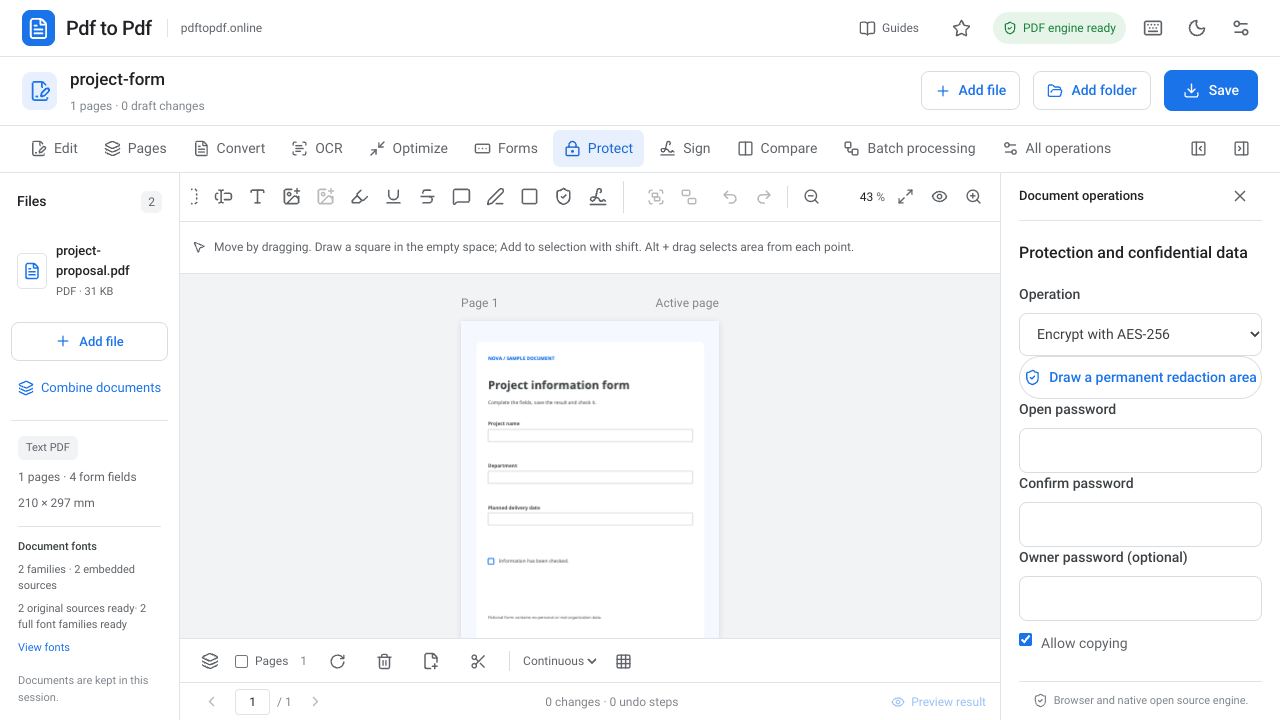
If you want to edit a PDF in your own working archive or prepare it for another operation, you can remove its password protection. This operation is for a file you are authorized to access and whose password you know. The new copy can open without a password, which changes the way it should be shared and stored.
Removing a PDF password is different from discovering a forgotten one. The tool in Pdf to Pdf requests the existing document password; it does not guess passwords or crack protection. The steps below help you remove protection from the correct file using the correct password, then check the integrity of the prepared output before proceeding with your other work.
What is in this guide?
Which password is needed to unlock a PDF?
A PDF can contain different protections, such as an opening password and an owner password related to permissions. Being able to read a document in a viewer does not establish that editing permissions are open too. Check which password you have from the provider's explanation or your viewer's notification.
Enter the valid password you have in Document password. An incorrect password, empty field or password belonging to another version can cause failure. When you receive a new file, do not assume the previous document password still works. If you lack the password information, obtain the correct details from the person who provided the document.
How to remove a PDF password online
First identify the file you intend to change. If there are several attachments with the same name, compare their dates, sizes and page counts. Removing protection may be preparation for editing the content. Process only the version you need to work on so you do not create unnecessary unprotected copies.
- Open PDF password removal and select the encrypted PDF.
- Choose Remove password protection in the Protect panel.
- Enter the valid password you know in Document password.
- Click Apply to document and wait for the result.
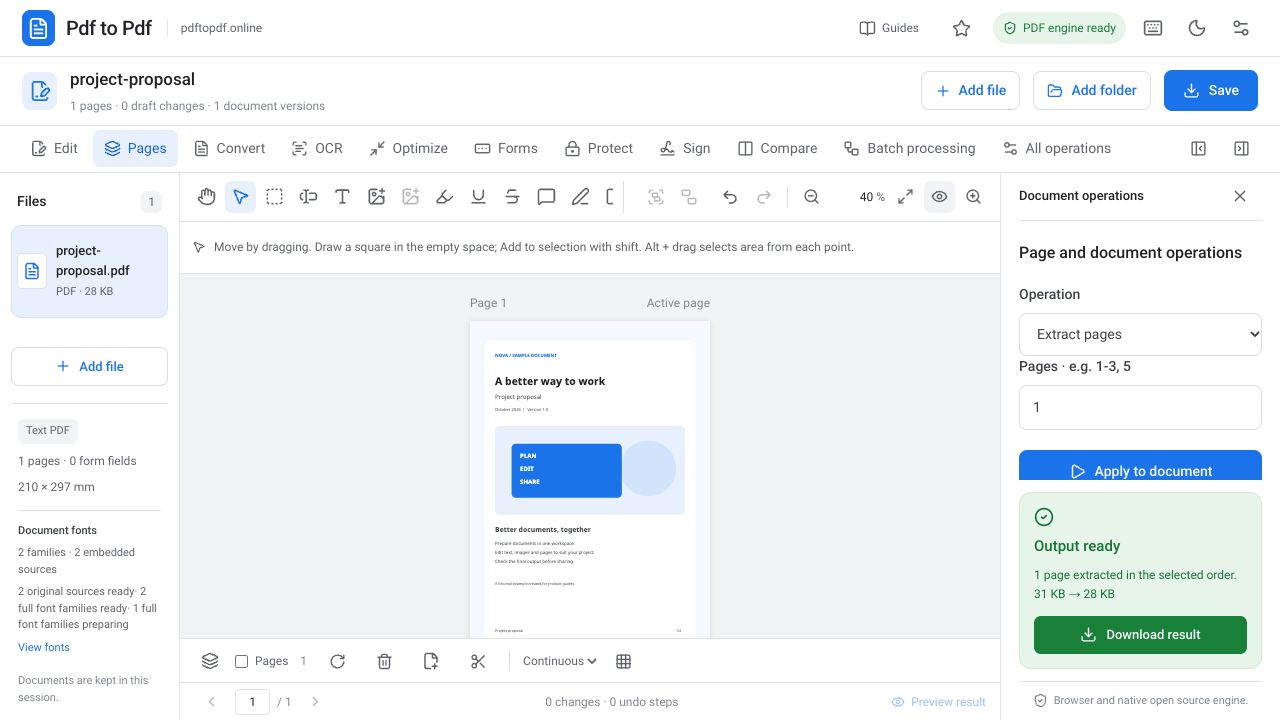
- Download the prepared file, open it in a new viewer and confirm that it no longer requests a password.
When a PDF password you believe is correct does not work
Copying and pasting may introduce a space at the beginning or end of a password. Check uppercase and lowercase letters, accented characters and digits that look similar. Do not write part of the password into the document to inspect it; storing it in the wrong place can create a new sharing problem.
A PDF already open in another viewer may use a password entered earlier in that session. Check which password really opens the file in a fresh session. If a valid password still produces an operation error, the file may be incompletely downloaded, damaged or use an unsupported protection structure. Follow the error message rather than assuming the output was successfully prepared.
Unlocking a PDF does not edit its content
Password removal does not fix text errors or make scanned pages selectable. A scanned page can remain an image after protection is removed. Consider OCR separately if you need text selection. Whether boxes are genuine form fields and whether source text has an editable structure are also independent of password status.
Changing protection on a certificate-signed file may affect signature verification. If the signature matters, check its status before and after the operation. A visible signature image remaining in the same place does not prove that the certificate signature is valid. After removing protection and finishing all edits, apply a new signing process if required.
Check and store the unprotected PDF output
Do not confuse the new file with the tab displaying the already-open source document. Open the output from your downloads folder in a new viewer. After confirming there is no password prompt, check page count, inspect the first and last pages and visit several pages in the middle. Small text, table edges and form values should retain their appearance.
Use clear file names to distinguish the source and result. Report-protected.pdf and Report-working.pdf, for example, reduce the chance of sending the wrong version. Before moving the unprotected copy to a shared folder, consider who will be able to view it. The file with protection removed no longer has the same password-based access behavior.
If your only need was editing, you can add a password again to the final version for sharing. Complete page, text and form changes first, then apply encryption and test the new protected output. This establishes a clear working sequence between an intermediate copy and the finished file you intend to distribute.
For a folder containing many protected documents, evaluate each password separately. Similar file names do not mean identical passwords. Give outputs separate names and complete one document first so operation failures can be matched to the correct file. Then move to the others, making it easier to track which version has an unprotected copy ready.
Frequently asked questions
Can I remove a PDF password if I do not know it?
This tool works with a known valid password. It does not recover forgotten passwords, guess passwords or crack protection.
Does removing a PDF password change the writing?
The operation aims to remove password protection. Content editing is separate. Still check page count, text and form values in the downloaded file.
What if text is not selectable in the unlocked PDF?
The file may contain scanned page images. Removing a password does not perform OCR, so evaluate text recognition separately.
Can I add a password again after editing?
Yes. Once editing is complete, use PDF encryption and check that the prepared encrypted output opens with the correct password.
Try this workflow on your document.
Open the appropriate tool in Pdf to Pdf, add your document, and check the result.
Open PDF password removal