Quick answer
To convert a PDF to Word, open the document, choose PDF → Word in the Convert group and download the DOCX output. This method is useful when you want to rewrite a long text, change heading hierarchy or turn a report into a new version. It provides a working document for broader revisions.
A PDF usually stores the final appearance of pages, while Word works with paragraphs, tables and flowing text. Conversion reconstructs content between these two structures. Check the downloaded DOCX, particularly when the original contains complex catalogs, scanned pages or multiple columns. A completed conversion is the beginning of review, rather than a guarantee that every layout detail will remain identical.
What is in this guide?
How to convert PDF to Word online
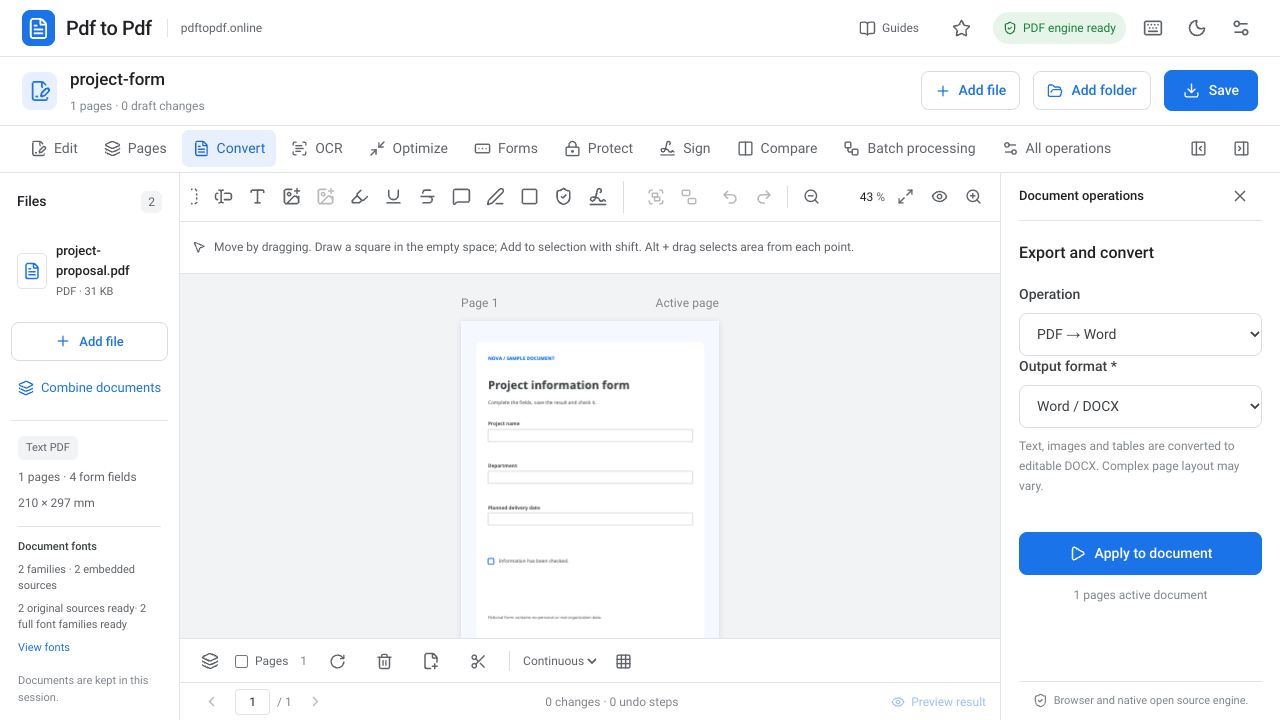
Use Add file to bring your PDF into the workspace. If multiple documents are open, activate the file you want to convert. Open the Convert group and choose PDF → Word in the operation selector. Select DOCX as the Word output format and click Apply to document. When the operation finishes, use Download result to obtain the file.
Open the DOCX in Word or a compatible office application. A successful conversion does not mean every page detail stays the same. Check the heading on the first page, the text on the last page and several tables throughout the document. These checks help you establish that the output is complete and provides a suitable starting point for editing.
- Open the PDF with Add file.
- Choose PDF → Word in the Convert group.
- Use DOCX format and click Apply to document.
- Open the downloaded file in Word and review its text and layout.
Why can page layout change after PDF to Word conversion?
A paragraph visible in a PDF may consist of many separate pieces of text in the source. Word conversion attempts to arrange these pieces into a meaningful flow. Columns, side notes, text boxes and headings written over images need more complex reconstruction than an ordinary document with a single column.
If only a small date or name needs changing, editing the PDF directly may be a shorter route. If most of the document will be rewritten, the Word output offers more flexibility. Choose based on that distinction to avoid unnecessary layout changes from conversion. Keep the original PDF beside the DOCX as a visual reference while you work.
Convert a scanned PDF to Word with OCR
In a scanned document, the writing is inside an image. Consider the OCR workflow to provide actual text to the converter. In the OCR group, apply recognition using options appropriate to the language of the document. Matching recognition language to the source helps with accented and non-ASCII characters, although it does not remove the need to check the output.
Skewed images, shadows, low contrast and small font sizes make recognition harder. Examine names, dates, amounts and reference numbers especially carefully after OCR. A misread character may look minor in an ordinary paragraph but cause a significant error in account or application information. Complete content verification in the DOCX before delivering the file.
Check tables and images in the converted Word file
Do not judge tables solely by appearance. Check whether column headings align with the right data, inspect merged cells and ensure every row is complete. In a PDF where numbers are arranged visually in columns, row and column relationships may have to be reconstructed during conversion. Compare total rows and unit information with the original especially carefully.
Images may need different anchoring or text-wrapping settings in Word. If a picture moves to the end of a page, review its layout options first. A shape or logo made of separate source pieces may be transferred as several components. If preserving the exact appearance is your only requirement, continue using PDF for the final document delivery.
Fonts and accented characters in PDF to Word conversion
A font embedded in the PDF may not be installed on the computer where Word opens the output. An office application using a substitute font can change line lengths and page count. Headings that look correct while long paragraphs move to another page can signal this difference. Treat the PDF font name as a reference alongside the visual appearance.
Search the converted text to check accented characters and a few special symbols. If you change fonts, use a consistent choice across the document; changing only one sentence can make the layout less predictable. If you convert the finished document back to PDF, inspect page endings, overflowing lines and the space around headings in that output as well.
Check your DOCX before delivery
Before you begin editing, save the converted copy under a separate name. Copy a few critical paragraphs and check that the text order makes sense. Then review headings, tables, footnotes and page numbers. If conversion has produced many text boxes, simplifying the document structure before a long revision can make the work more comfortable.
In the final review, compare content as well as appearance. Look for missing lines, joined words, incorrect numbers and sections in the wrong order. If the original has forms or certificate-based signatures, do not treat the DOCX as their original verifiable form. Preserve the original PDF and use the Word version as a new file created for editing.
Frequently asked questions
Will a PDF look exactly the same after conversion to Word?
Simple text documents can produce a close result. Complex tables, columns, text boxes and font differences can change the layout. Compare the DOCX with the source PDF.
Can a scanned PDF become an editable Word document?
The writing in a scan requires OCR. Recognition quality depends on image clarity and language. After OCR and conversion, check numbers, names and accented characters especially carefully.
Should I convert a PDF to Word for a small correction?
It is not always necessary. Editing existing PDF text can be more direct for a date or short phrase. DOCX is better suited to long text revisions and restructuring.
Try this workflow on your document.
Open the appropriate tool in Pdf to Pdf, add your document, and check the result.
Open PDF to Word conversion