Quick answer
To convert a Word file to PDF, import your DOC or DOCX document into the studio with Add file. Once conversion is complete, review the PDF pages and save the result. The source Word file is preserved while a PDF copy is prepared for use in the workspace.
PDF is useful for sharing a document with a consistent page appearance on the recipient's device. However, fonts, tables and page endings can affect the result when converting from Word. A brief review after conversion improves delivery quality, especially for business letters, resumes, quotations and long reports. Treat the PDF as a finished output and keep the editable Word source for later changes.
What is in this guide?
Steps to convert Word to PDF online
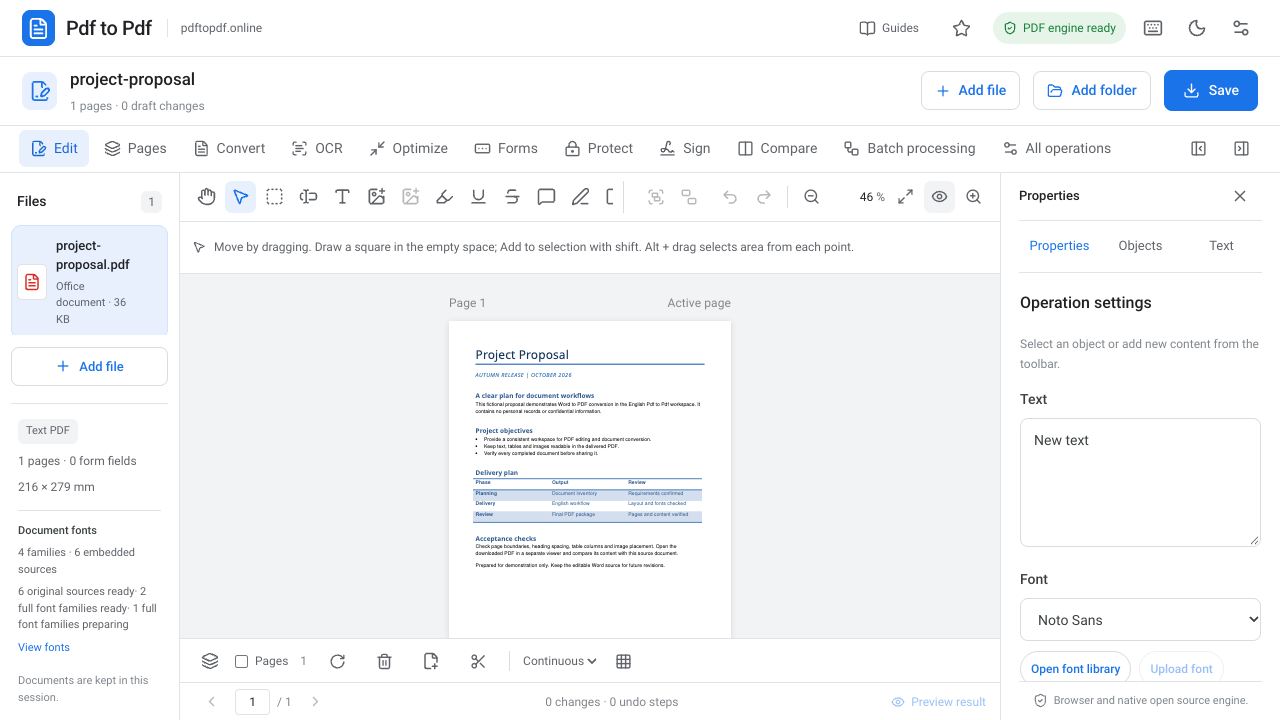
Open the studio and select your Word document with Add file. DOC and DOCX files are processed through the Office import workflow. If the Import document into studio window appears, confirm the import. Once processing finishes, the pages appear as a PDF in the workspace, where you can also add text or annotations.
Wait for the uploaded file to open; adding the same file again does not accelerate conversion. If several documents are open, select the correct PDF copy in the list on the left. Check the first and last pages first. Then review pages containing headings, tables and images to ensure that the appearance follows the layout you expect.
- Select your DOC or DOCX file with Add file.
- If prompted, start the import in the Import document into studio window.
- Review the layout of the generated PDF.
- Use Save to prepare and download the PDF copy.
What to check when converting DOC and DOCX files
DOC is an older Word document format, while DOCX is a newer one. In either format, image anchoring, table widths and paragraph spacing may behave differently across applications. Changing a file extension does not produce a PDF: genuine conversion must read the document and generate its page appearance.
Do not expect PDF conversion to act as an automatic design repair for a Word source with broken layout. Columns made with spaces or headings pushed downward with many blank lines are fragile structures. If you can edit the source, first strengthen the layout using proper document tools such as tables, paragraph spacing and page breaks.
Check fonts and line shifts in Word to PDF conversion
If a font used by the Word document is unavailable in the conversion environment, a substitute font may be used. A small difference in letter widths can push a long heading onto a second line or a paragraph onto the next page. Reading the heading alone is insufficient; also inspect paragraph endings and lines close to the bottom of each page.
For a custom corporate font, availability of the font file and its embedding conditions matter. Checking a simple document using common fonts is usually easier. Inspect accented characters, bullet points and symbols in the downloaded PDF. If something has changed unexpectedly, adjust the font choice in the source document and repeat the conversion.
Keep Word tables and pictures readable in the PDF
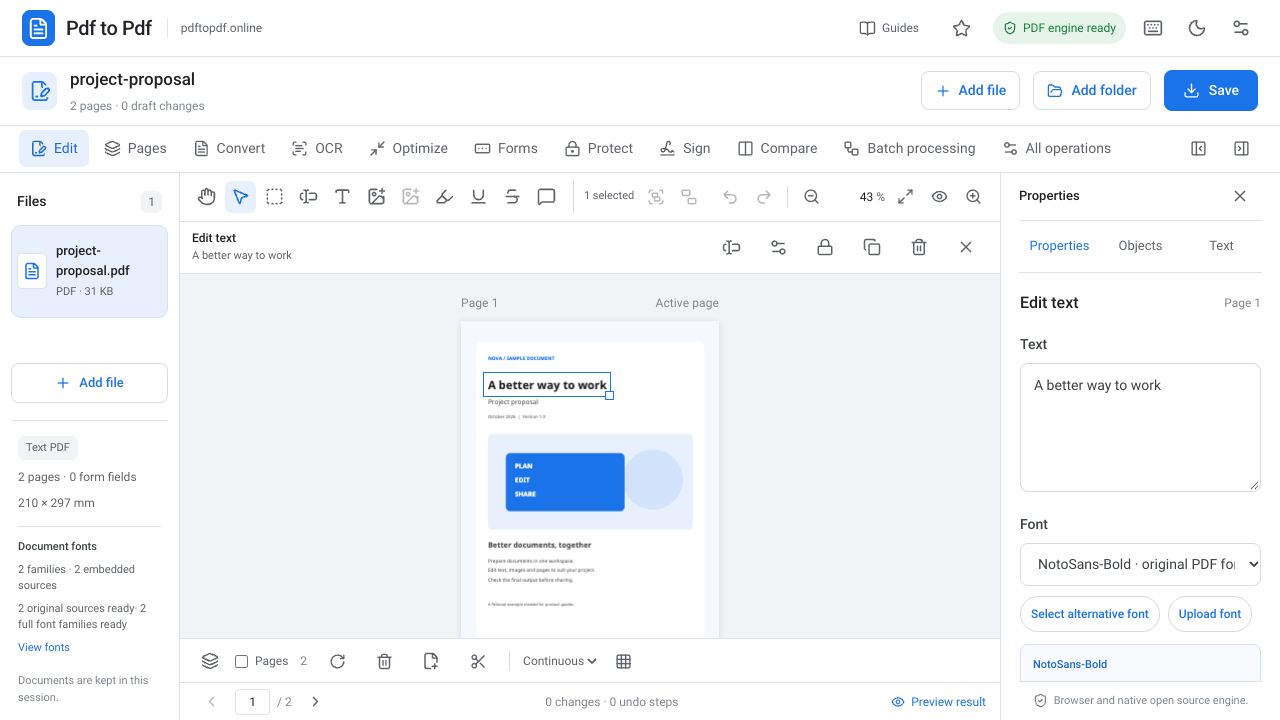
Check how table rows are split between pages. A row with one half on one page and the other half on the next can be hard to read. The final column of a wide table may extend beyond the margins. The paper orientation and table width in your source directly affect how these features appear in the PDF.
For images, their relationship to a heading or caption matters. Check whether a photograph has moved to a different page or a text box covers an image. Adding a new image to the PDF can handle a small correction; for extensive layout problems, editing the Word source produces a more orderly result. Save the source and output with separate names.
Combine several Word documents into one PDF
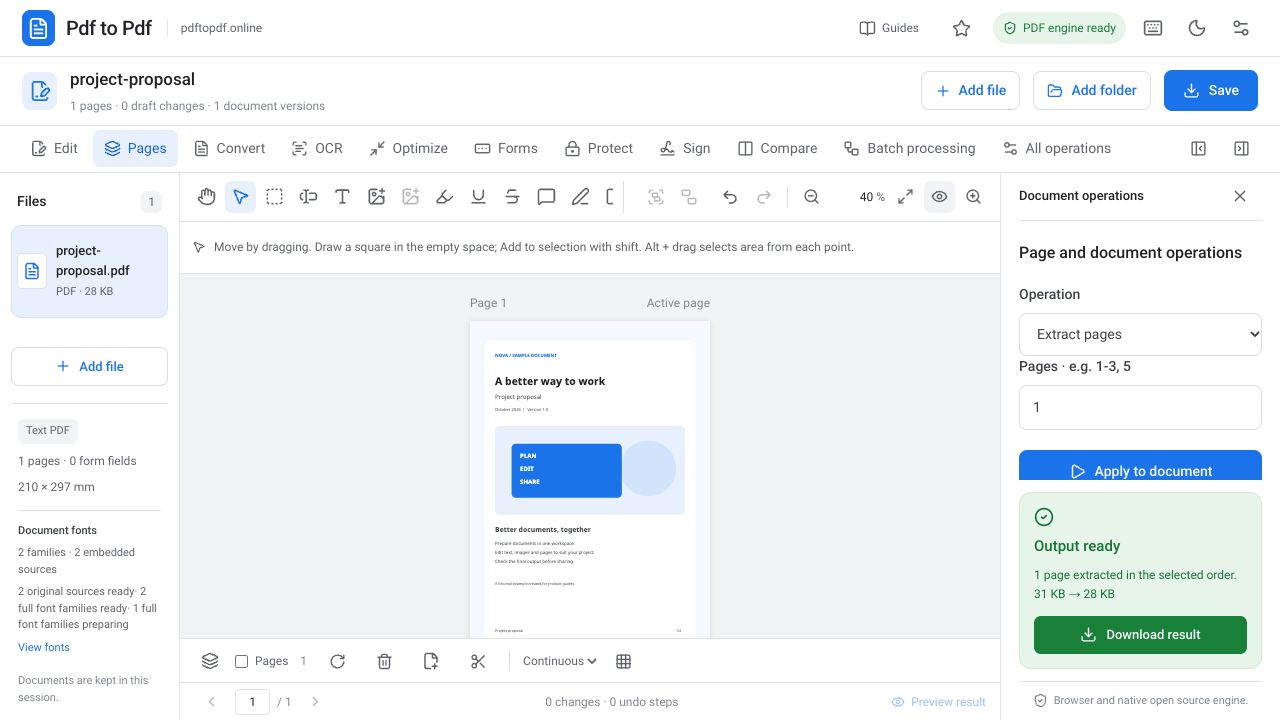
Import separate Word documents into the same workspace to create a PDF copy of each. Then arrange them in the file list and apply merging in the Pages group. This helps prepare one delivery document when a proposal, pricing table and supporting explanations are held in separate files.
Check each conversion first, then merge. Discovering an extra blank page inside the combined output can make the source of the problem harder to track. If the documents were prepared with different paper sizes, the merged result may also contain pages with different dimensions. Evaluate those sizes separately when the file needs to be printed.
Final checks for a PDF converted from Word
Reopen the downloaded PDF and compare its page count with the source. Exact equality is not the only measure of success; different font metrics may have changed pagination. The important point is that the content remains complete and readable. Check that headings are not stranded alone at the bottom of a page and that footnotes and numbers appear correctly.
If you will upload the document to an organization's portal, check its required extension and size limit. If the file is large, consider lossless optimization first. Creating a PDF does not add a certificate-based signature; signed delivery requires a separate step. Save the version ready for sharing with a descriptive name and date to reduce the risk of sending the wrong file.
Frequently asked questions
Is changing a Word file extension to PDF enough?
No. Renaming a file does not convert its format. A conversion engine must read the Word document and create PDF pages.
Why does text shift during Word to PDF conversion?
Font differences, table widths, image anchoring or fragile paragraph layout can cause shifts. Check the output and correct major layout problems in the Word source.
Can I turn multiple DOCX files into one PDF?
Import the files into the studio and check their PDF copies. Arrange the file order and merge them in the Pages group to prepare a single PDF output.
Try this workflow on your document.
Open the appropriate tool in Pdf to Pdf, add your document, and check the result.
Import a Word document